AI invoice processing for small businesses: supplier invoices into Excel, QuickBooks or Xero

- Published
- 18 November 2026
- Prices checked
- 15 November 2026
AI invoice processing reads each supplier invoice, pulls out the supplier, number, dates and amounts, checks them and enters a bill for you to approve. A small business has four routes: the capture built into QuickBooks or Xero, a capture tool like Dext, Claude with a spreadsheet or connector, or a custom build when approvals and volume grow.
What AI invoice processing does, step by step
Accounts payable sounds like a department, but in a small business it's one person and a pile of PDFs. Every supplier invoice goes through the same eight steps, whether you do them by hand or not. AI can take over most of five of them, and two should stay with a person.
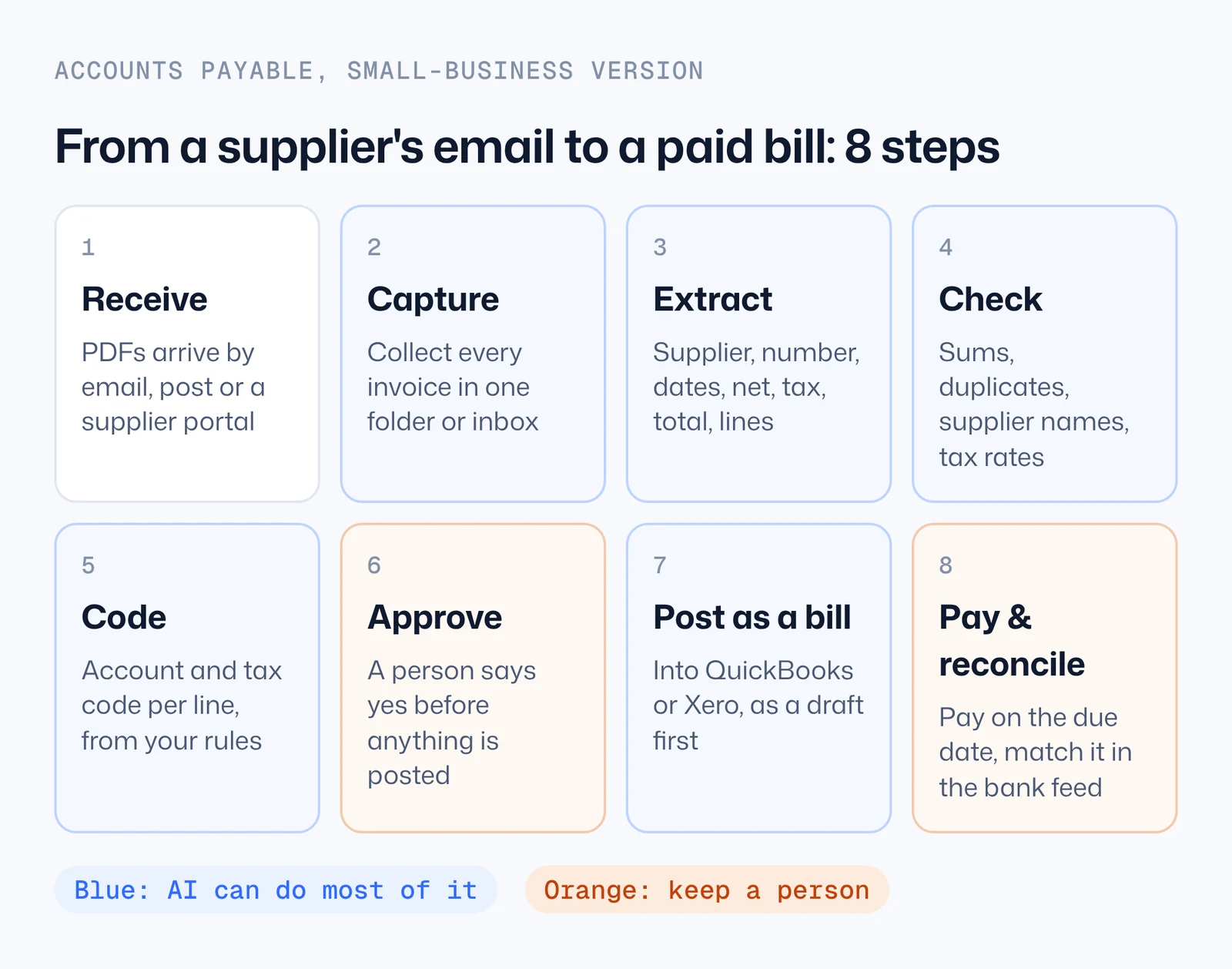
- Receive. Invoices arrive as email attachments, from supplier portals, sometimes on paper.
- Capture. Every invoice ends up in one place: a folder, an inbox, or your accounting software's document area. Most mistakes start here, with an invoice that never got captured.
- Extract. The supplier, invoice number, invoice date, due date, net, tax, total and, if you need them, the line items. This is the part people mean by "invoice OCR". Modern models read a PDF the way a person does, so they don't need a template per supplier.
- Check. Net plus tax equals the total, the invoice isn't already in your books, the supplier is one you know, the tax rate makes sense.
- Code. Each line gets an expense account and a tax code. Most small businesses can write this as rules per supplier: fuel goes to vehicle costs, the accountant goes to professional fees.
- Approve. Someone with the authority says yes. In a two-person business that's you; the point is that a person looks before money moves.
- Post as a bill. The bill goes into QuickBooks or Xero, ideally as a draft you can still change.
- Pay and reconcile. You pay on the due date and match the payment in the bank feed.
When software vendors talk about "three-way matching", they mean an extra check at step 4: the invoice is compared with the purchase order and with proof that the goods arrived. If you don't raise purchase orders, you don't need it, and none of the routes below require it.
The four routes, and which one fits you
| Route | Good fit | What it costs | Watch out for |
|---|---|---|---|
| 1. Built into your accounting software (QuickBooks forwarding email, Xero Smart Document Capture) | You forward invoices and want draft bills or expenses with no new tool | Included in the plans that have it | Little control over checks; reads header fields well, line items and tax less so |
| 2. A capture tool (Dext and similar) | Many invoices, receipts and statements, an accountant who already uses the tool | Dext from $25.21 a month for 250 documents, billed yearly; line items extra | Another subscription and another login; rules live in the tool |
| 3. Claude (a checked spreadsheet, the QuickBooks Labs connector, or Xero's import) | You want to see and check everything before it reaches your books, in your own words | A paid Claude plan, Pro from $17 a month billed yearly | You run it; scheduled runs that use a folder need your computer awake |
| 4. A custom build on your accounting software's API | Several approvers, rules per client or entity, invoices that must be booked at night | From $1,990 for a working version in a week with us; other builders vary | Worth it only when the rules are stable and the volume is real |
Swipe the table sideways for all columns. Prices checked 15 November 2026 on the vendors' own pricing pages (sources at the end). QuickBooks and Xero include their capture features in the plans named below; check your own plan's page.
A quick way to decide. If you mostly want the typing gone and you trust the software's defaults, start with route 1, because you already pay for it. If you want a sheet you can read and check before anything is booked, or you want Claude to catch duplicates and wrong supplier names first, use route 3. Route 2 earns its subscription when your accountant already works in it. Route 4 is for when the process has rules that a forwarded email can't hold.
The routes also combine. A common setup is route 1 for receipts from your phone and route 3 for supplier invoices, because supplier invoices are where duplicates and wrong supplier names cost money.
Before you automate: five things to get ready
Every route below works better, and some only work, when these are in place. Each takes minutes, not days.
- One place for invoices. Pick one folder (or one inbox) where every supplier invoice lands. Ask suppliers to send to one address. If invoices also arrive on paper, scan them into the same folder.
- A clean supplier list. Open your suppliers in QuickBooks or Xero and merge the near-copies ("Northline" and "Northline Freight Ltd"). Every route matches suppliers by name, so near-copies multiply.
- Your account rules, written down. A short list: supplier, usual expense account, usual tax code. Ten lines cover most small businesses. Claude, Dext and custom builds can all use it.
- Your tax setup. Know whether your prices are entered with tax included or excluded, and which tax codes you use. QuickBooks' bill import asks you this outright.
- Twenty test invoices. Pick twenty real invoices from last month, including an ugly scan, a credit note and an invoice with several tax rates. Run any route on these first and compare with what you entered by hand. Vendors quote accuracy rates; your own twenty invoices tell you more.
Route 3a: invoice PDFs into a checked Excel sheet with Claude
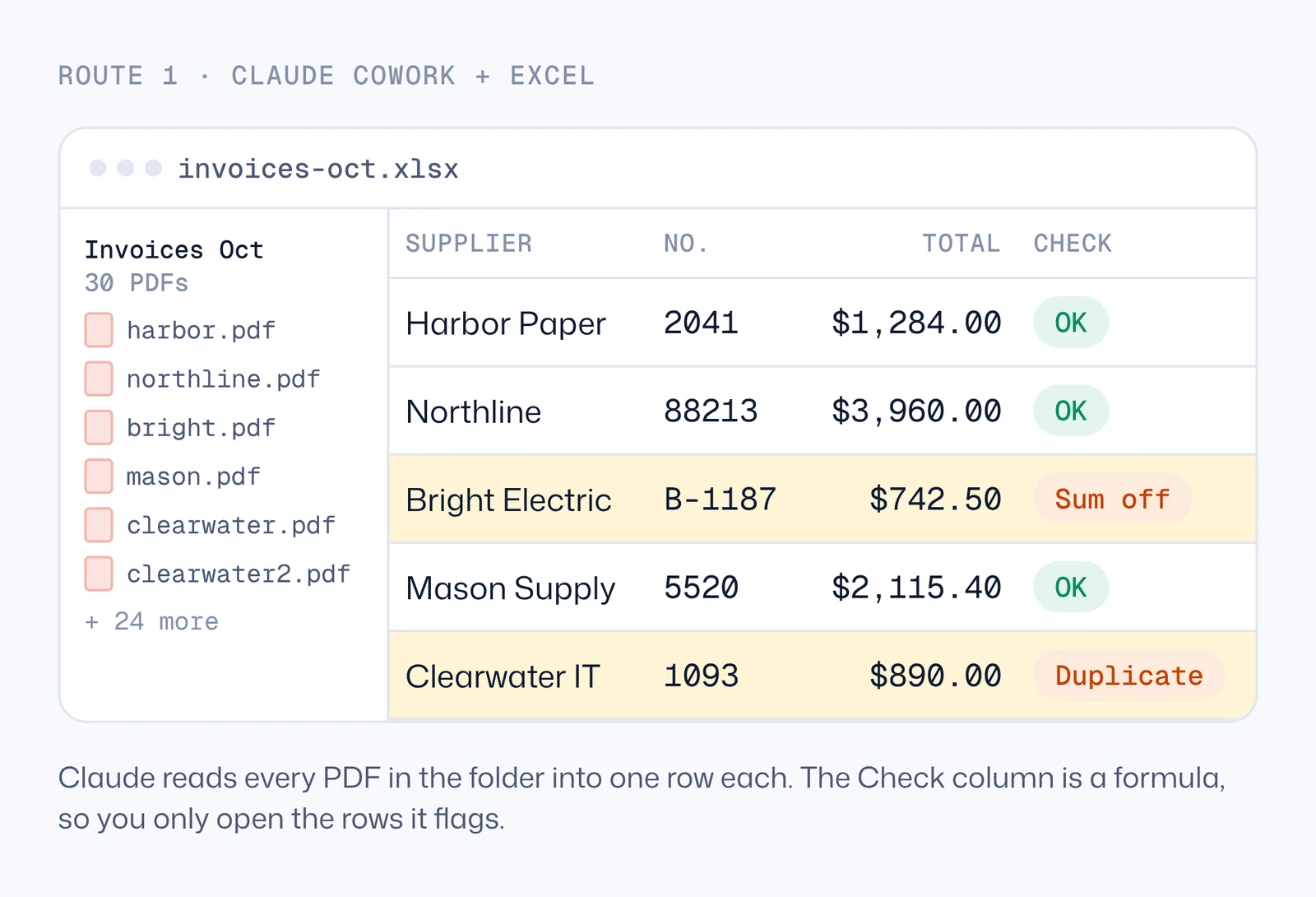
This is the most flexible start, and it works whatever accounting software you use. Claude reads a folder of invoices and builds one spreadsheet: a row per invoice, with formulas that check each row. You only open the invoices the sheet flags.
You need the Claude desktop app with Cowork, which comes with the paid Claude plans.
Steps
- Put this month's supplier invoices in one folder.
- Open the Claude desktop app and start a Cowork task. Choose that folder when Claude asks which folder to work in.
- Paste the prompt below and send it.
- Claude reads every PDF and saves an Excel file in the folder. Open it and look at the Check column.
- Open only the flagged invoices, fix the row, and the check turns OK.
Read every PDF in this folder. Make one Excel sheet with one row per invoice: supplier, invoice number, invoice date, due date, currency, net, tax, total, and the file name. Add a Check column with formulas, not typed values: "Sum off" when net + tax isn't the total, "Duplicate" when the same supplier and invoice number appear twice, otherwise "OK". Don't guess: leave a cell empty and write why in a Notes column if you can't read it.
Ask for formulas, not answers. A typed "OK" stays OK after you change a number. A formula re-checks. With net in column F, tax in G and total in H, these are the checks to ask for (or to type yourself):
=IF(ABS(F2+G2-H2)>0.01,"Sum off","OK")
=IF(COUNTIFS(A:A,A2,B:B,B2)>1,"Duplicate","OK")
=IF(D2<C2,"Check dates","OK")
What the flags usually mean. A sum that's off is most often a line the model skipped: a discount, a delivery charge, a second tax rate or a rounding line. A duplicate is usually the same invoice sent twice, for example once as the invoice and once as a payment reminder. A date flag is often a US/UK date mix-up (03/04 read as 4 March instead of 3 April). Fix the row, keep the PDF name in the sheet, and the trail stays clear.
Make it a weekly job. In the same chat, ask Claude to run this every Monday at 8. Claude drafts a scheduled task with a name, a time and the instructions; check it and click Schedule. Scheduled tasks run in the cloud by default, but a task that works on a folder on your computer only runs while that computer is awake and the Claude app is open. If invoices land in a shared drive instead, connect the drive and point the task there.
Route 3b: bills into QuickBooks Online
QuickBooks gives you three ways in. Use the one that matches how much you want to check first.
Option 1: QuickBooks' own forwarding email. In QuickBooks Online, go to All apps → Accounting → Receipts → Forward from email, create an address (it ends in @assist.intuit.com) and switch it on for each user who may forward. You then forward invoices and receipts as PDF, JPG, GIF or PNG files, one document per file. QuickBooks reads the date, amount and vendor and puts each one in the Receipts tab, where you review it, assign the account, and match or create the transaction. It's the least setup, and you check each document in QuickBooks.
Option 2: Claude with the QuickBooks Labs connector. Intuit's QuickBooks Labs connector for Claude is in beta and can record bills, expenses and payments, as well as create invoices and run reports. In Claude, open Connectors, find Intuit QuickBooks Labs, click Add and sign in with your Intuit login. If you had the older Intuit QuickBooks connector, remove it so Claude doesn't choose between two. Intuit's Claude connector has been for US companies; check your country on the connector page before you plan around it.
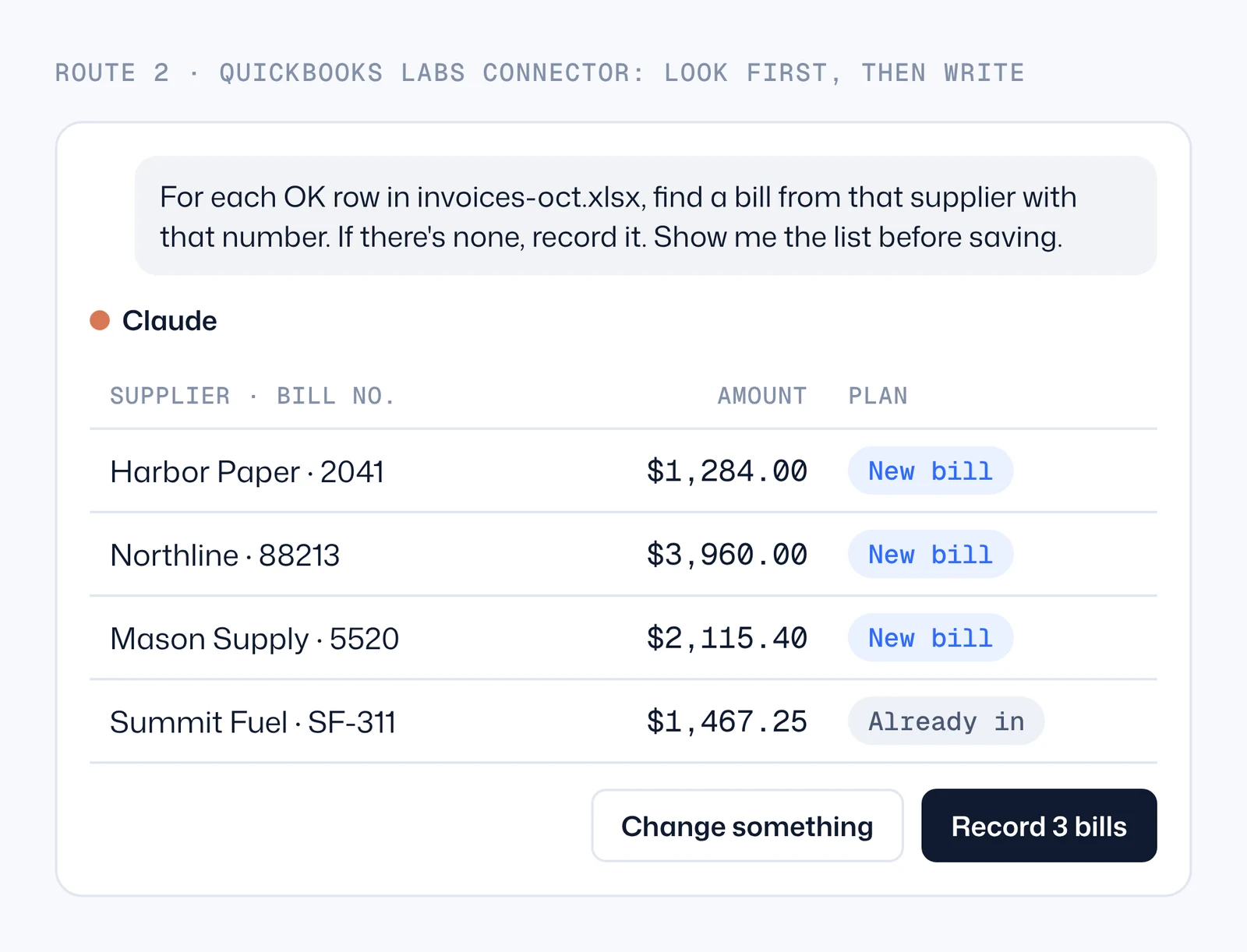
The trick is in the order of the prompt: look first, then write, then show the list. The same invoice reaches you twice more often than you think, and a duplicate bill is easy to pay twice.
For each OK row in invoices-oct.xlsx, look for a bill in QuickBooks from that supplier with that invoice number. If there's none, plan to record it with the supplier name QuickBooks already uses, the due date and the amount, coded to the account I usually use for that supplier. Show me the list of new bills and the ones you skipped, and wait for my OK before recording anything.
If one of your suppliers reuses invoice numbers, add the amount to the match: same supplier, same number and same amount. If you keep account rules (step 3 of the preparation), paste them into the chat or save them as a file Claude can read, so every run codes the same way.
Option 3: QuickBooks' bill import. For a batch, QuickBooks Online Essentials, Plus and Advanced can import bills from a CSV or Excel file: Settings → Import data → Bills. The required columns are bill number, supplier, bill date, due date, account, line amount and, if you use sales tax, a line tax code. Intuit recommends no more than 100 bills per import. Accounts must already exist; new suppliers can be created during the import with a tick box, which is exactly how near-copy suppliers appear, so fix names first. Discounts and credit notes can't be imported, and multicurrency can. Ask Claude to turn your checked sheet into this layout and you have a review step (the sheet) and a bulk step (the import) without any connector.
Route 3c: bills into Xero, where Claude can only read
Xero's connector for Claude is read-only. It can read your bills, invoices, contacts, chart of accounts, aged payables and reports, but it can't create or change anything. That sounds like a dead end for entering bills. It's actually the safest checker you can have: Claude looks at your real books before you import anything, and Xero's own tools do the writing.
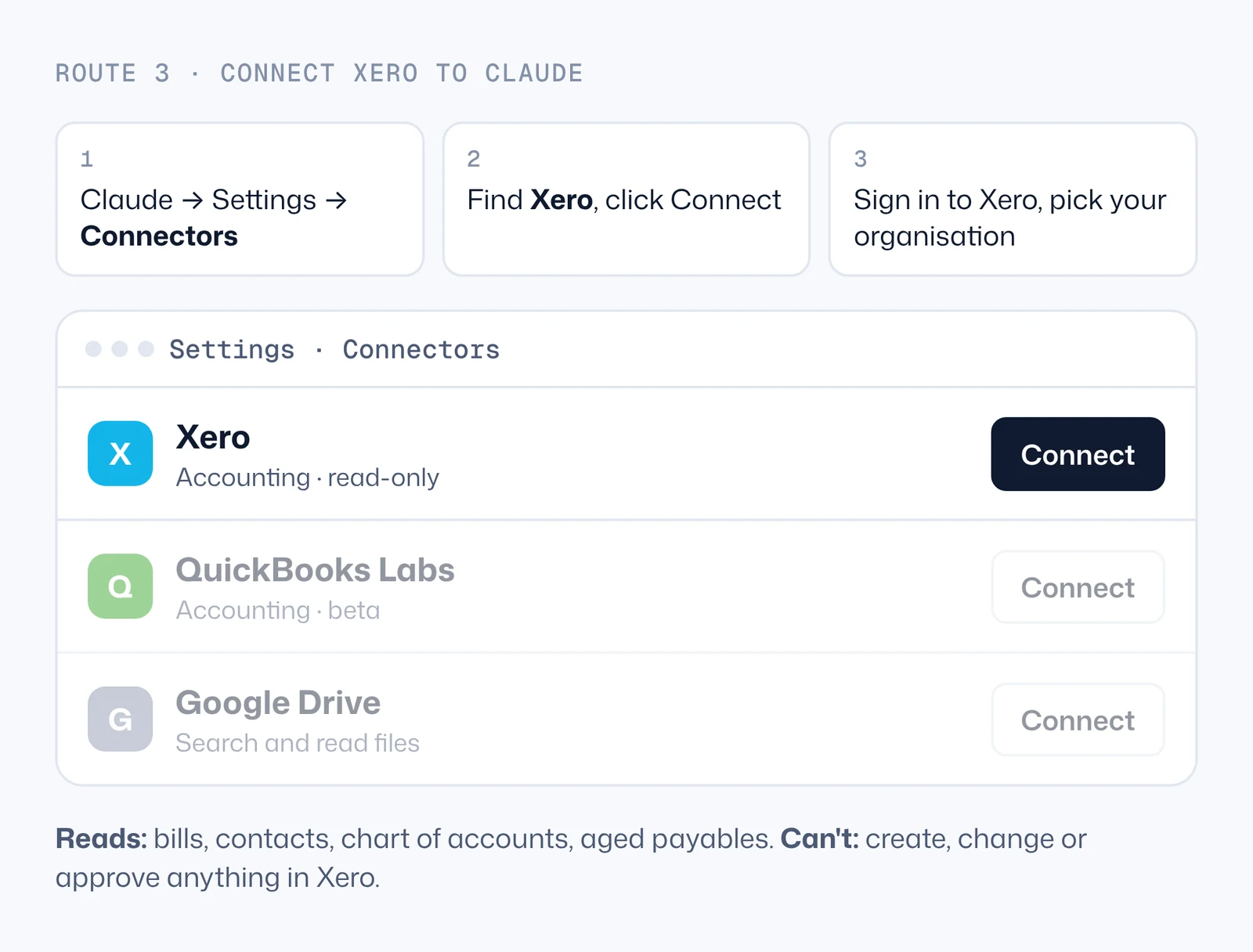
Connect Xero to Claude
- In Claude, open Settings → Connectors.
- Find Xero and click Connect.
- Sign in with your usual Xero login and choose the organisation Claude may read.
The connector's page says the data Claude reads is used only to answer you and isn't stored between sessions.
Use it as your checker. Before importing, ask Claude to compare your sheet with Xero.
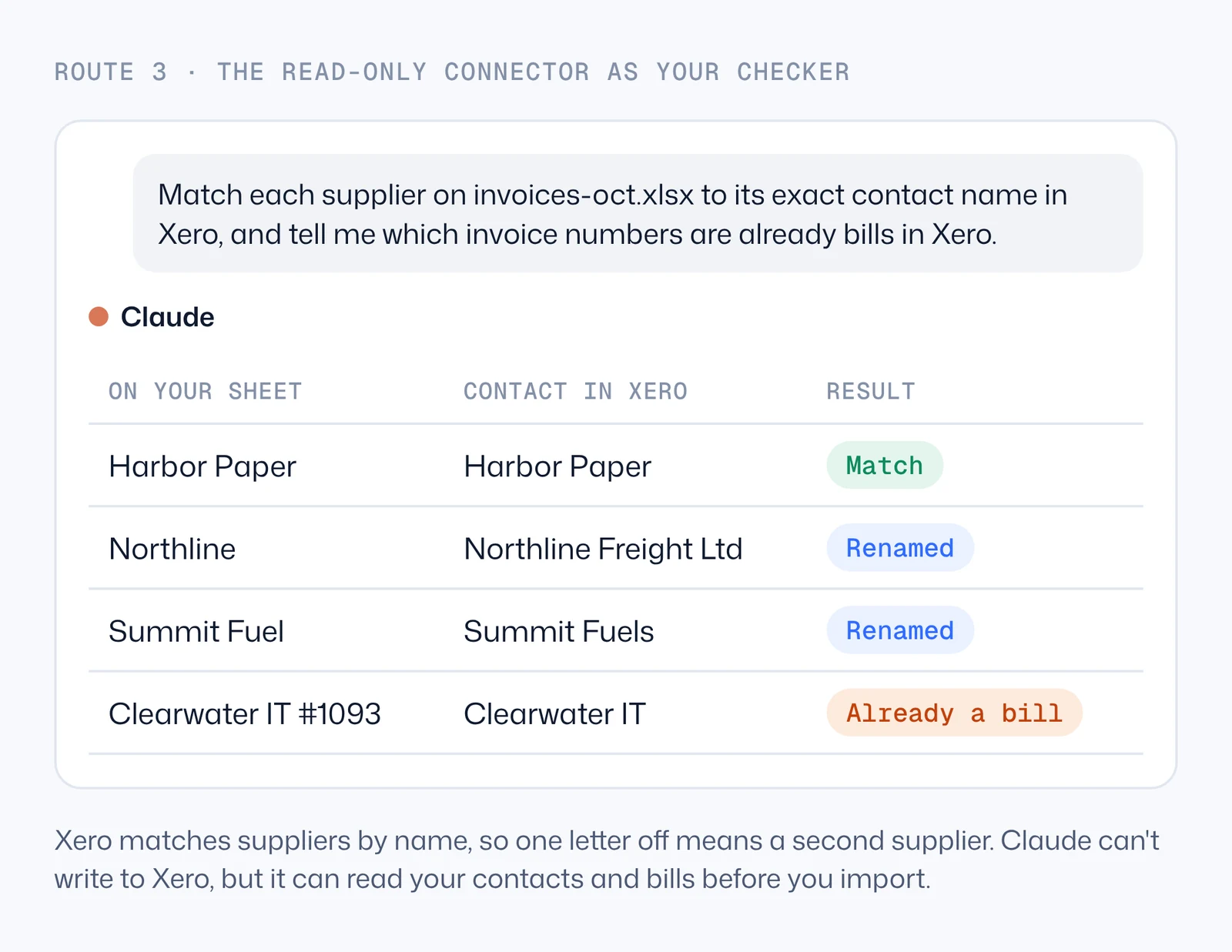
Read invoices-oct.xlsx. For each row: find the matching contact in Xero and use its exact name; tell me if no contact matches. Check whether a bill with that supplier and invoice number already exists in Xero. Suggest the account code I used on this supplier's last bill. Then make Xero's bill import file from the OK rows that aren't in Xero yet, using these columns: [paste the headers from Xero's template].
Why the exact name matters. Xero's bill import matches suppliers by their name. If your file says "Northline" and Xero has "Northline Freight Ltd", you get a second supplier instead of the one you have, and your supplier list slowly fills with near-copies. Xero users have asked Xero to match by account number instead; until then, the name is the key.
Import the file. In Xero, open Bills to pay, use the arrow next to New bill and choose Import. Download Xero's bill template there and give its headers to Claude, so the columns match exactly; don't rename them. Rows that share an invoice number become one bill with several lines. Dates follow your organisation's format, so a UK or Australian organisation expects day/month/year. Imported bills arrive as drafts: nothing is approved or paid until you say so.
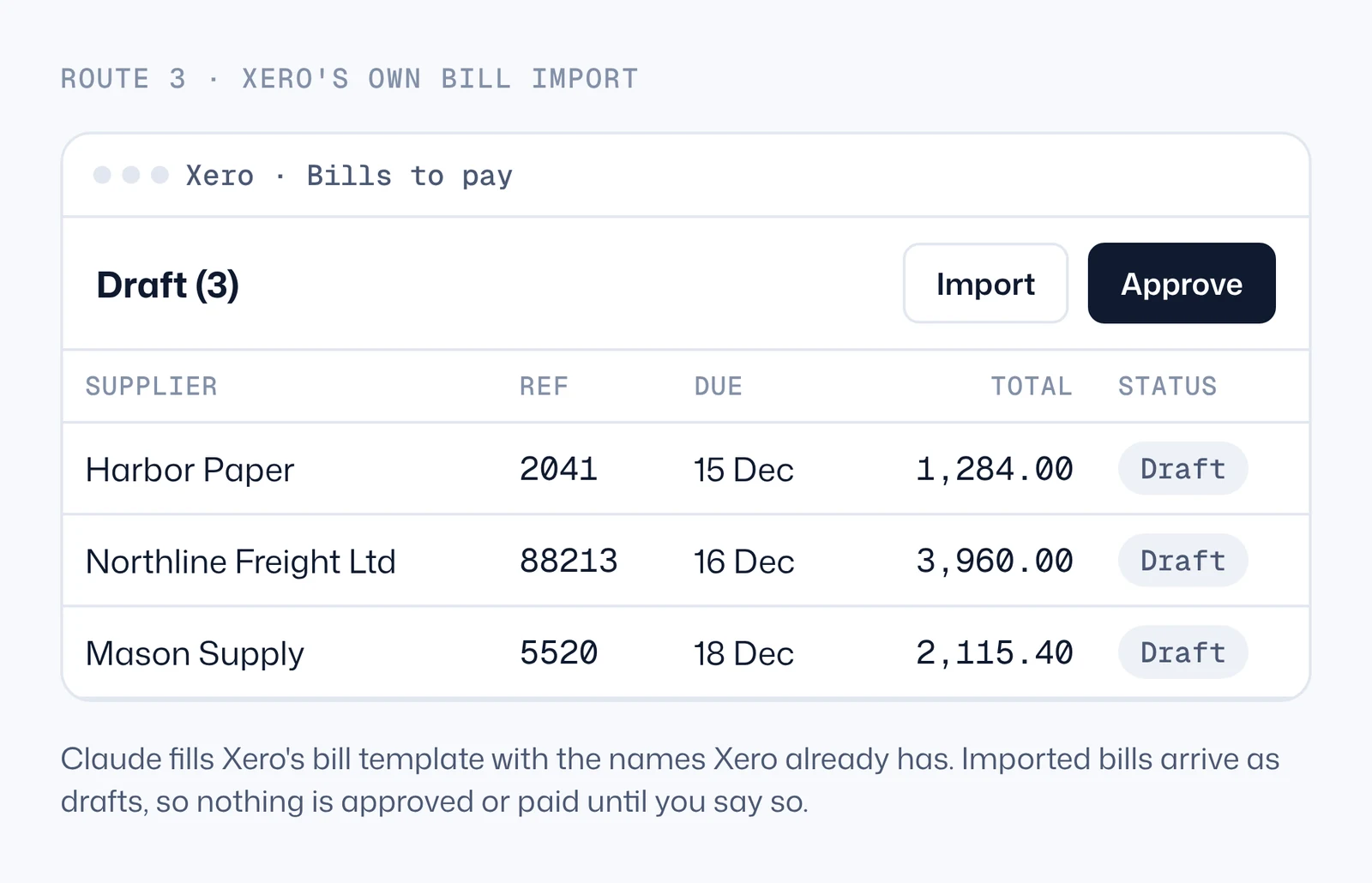
Then let the inbox do the routine ones. Xero's built-in capture, now called Smart Document Capture, is included in Xero's US plans (Early, Growing and Established). Each organisation has its own address for bills: forward a supplier's invoice there and Xero reads the amount, date and supplier, and you check it before it becomes a bill. You can give that address to suppliers directly. A good split: routine suppliers go to the bills inbox, and the monthly batch with odd invoices goes through Claude's check and the import.
About Hubdoc. Several comparison blogs say Xero shut Hubdoc down in 2026. We couldn't find that on any Xero page; Xero's own pages now talk about Smart Document Capture. If you rely on Hubdoc today, check Xero's announcements for your region rather than a blog.
The checks that catch most mistakes
Whichever route you take, these are the checks worth automating. Most are one formula or one line in a prompt.
| Check | What goes wrong without it | How to automate it |
|---|---|---|
| Net + tax = total | A discount, delivery charge or second tax rate was missed | Excel formula per row; ask Claude to list the lines when it's off |
| Same supplier + invoice number already exists | The invoice and its reminder both become bills and both get paid | COUNTIFS in the sheet; look-first prompt in QuickBooks; Claude reads Xero's bills |
| Supplier name matches your books | A near-copy supplier is created; spend reports split | Claude matches against QuickBooks or Xero contacts before writing |
| Tax rate is one you use | Wrong VAT, GST or sales tax claimed | List your tax codes in the prompt; flag anything else |
| Currency matches the supplier | A euro invoice booked as dollars | Currency column in the sheet; flag when it differs from the supplier's last bill |
| Due date after invoice date | Date read in the wrong order (US vs UK) | Date formula; state your date format in the prompt |
| Bank details unchanged | A fake invoice or a hacked supplier email asks you to pay a new account | Flag any invoice that shows bank details different from the supplier's last invoice, and confirm by phone |
| Amount within the usual range | A typo or an inflated invoice slips through | Ask Claude to flag anything more than twice the supplier's usual amount |
Swipe the table sideways for all columns. The bank-details check matters most: changed payment details are the classic invoice fraud, and no capture tool catches it unless you ask it to.
Coding to accounts, tax lines and other currencies
Coding. The easiest rules are per supplier: one supplier, one usual account, one usual tax code. Keep them in a short file and give it to Claude with every run, or keep them as supplier defaults in your accounting software. Note that QuickBooks' bill import and Xero's import take the account from your file, so the file is where the coding happens. Where one supplier sells you different things (a hardware store selling both tools and stock), ask for line items and code per line.
Tax lines. Most capture tools read the tax total well; line-level tax is where they slip, especially when one invoice mixes rates. If you're registered for VAT or GST, keep the tax amount as its own column and check it against the rates you use. QuickBooks' import asks whether amounts include tax; answer it the same way every time.
Other currencies. Keep the invoice's currency in its own column and never let a model convert it for you. QuickBooks' bill import supports multicurrency; in Xero, bills in another currency need a plan that includes multicurrency. The exchange rate belongs to your accounting software, not to the extraction step.
Security and your data
- Give the least access that works. The Xero connector is read-only by design. The QuickBooks Labs connector can write, so keep "wait for my OK" in your prompts and use a Claude account only you control.
- Know where the data goes. The Xero connector's page says the data Claude reads through it is used to answer you and isn't stored between sessions. Invoices you put in a Cowork folder are read by Claude to do the task; check your Claude plan's data settings, and use a Team or Enterprise plan if your company needs admin controls.
- Keep a person on approvals and payments. Every route here ends in a draft or a list for you to check. Keep it that way, and keep paying from your bank, not from an automated step.
- Keep the paper trail. Keep the file name in the sheet and the PDF attached to the bill where your software allows it. Tax authorities ask for invoices, not spreadsheets.
What it costs
| Route | Monthly cost | Your time |
|---|---|---|
| QuickBooks forwarding email | Included in your QuickBooks Online plan | Review each document in Receipts |
| Xero Smart Document Capture | Included in Xero's US plans | Review each document before it becomes a bill |
| Dext | From $25.21 a month billed yearly ($302.50 a year) for 250 documents and 5 users; line-item extraction from $20.50 a month or $0.50 a document | Review in Dext, then publish to your software |
| Claude | Pro $17 a month billed yearly or $20 monthly; Max from $100 | Check the flagged rows and the list before each write |
| Custom build | From $1,990 one-off for a working version in a week with us, plus running costs | Agree the rules once; then review drafts |
Swipe the table sideways for all columns. Prices checked 15 November 2026 on claude.com/pricing and dext.com. Accounting software plans vary by country; the features named here were checked on Intuit's and Xero's US pages.
The real cost is your time on the exceptions. A route that flags ten rows you can fix in a minute each beats a route that is "98% accurate" and doesn't tell you which 2% are wrong.
When to stop doing it yourself
The routes above are built for one person who checks the work. They start to strain when:
- Several people approve. Approval chains, limits per person and an audit trail need an app, not a chat.
- It must run when nobody is at a computer. Invoices arrive overnight in a shared inbox and should be in draft by morning.
- You keep several sets of books. Rules per client or per entity, as a bookkeeping practice or a group of companies has.
- Invoices aren't the only document. Delivery notes, purchase orders and statements need matching, which is the three-way matching mentioned at the start.
At that point a small app on QuickBooks' or Xero's API is the cleaner answer: it reads the inbox, extracts, checks against your books, creates draft bills with the PDF attached, and asks the right person to approve. We build these, and the same pattern runs in other businesses' systems we've built: documents in, structured records out, a person approving before money moves.
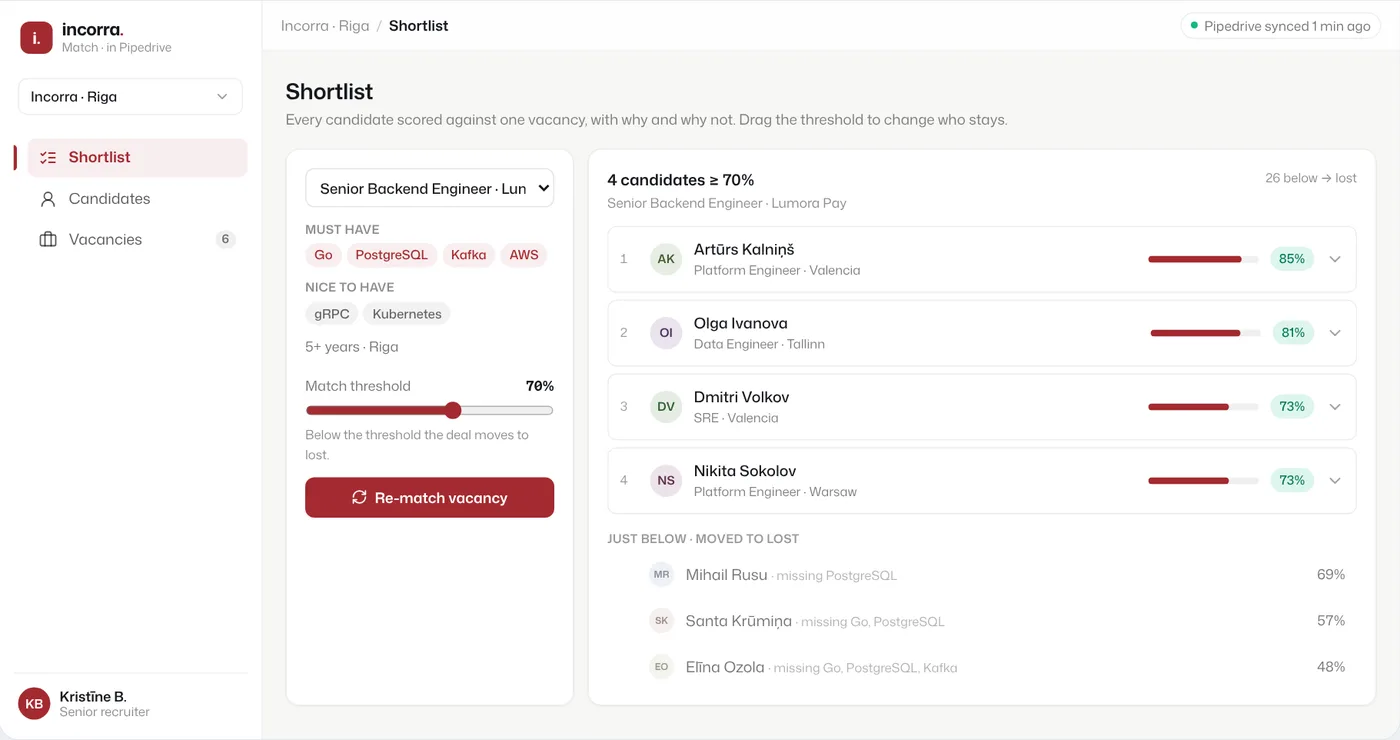
Documents parsed into structured records, inside the tool the team already used
AI runs on · OpenAI for parsing and matching; n8n, Bubble and Supabase; inside Pipedrive
Not invoices, but the same job: a recruiter received CVs in every layout and needed them as clean records in Pipedrive, the CRM the team already worked in. Every CV is parsed into a structured profile, and each new vacancy is scored against about 500 candidates with a short reason. The team didn't change tools; the AI works inside the one they had.
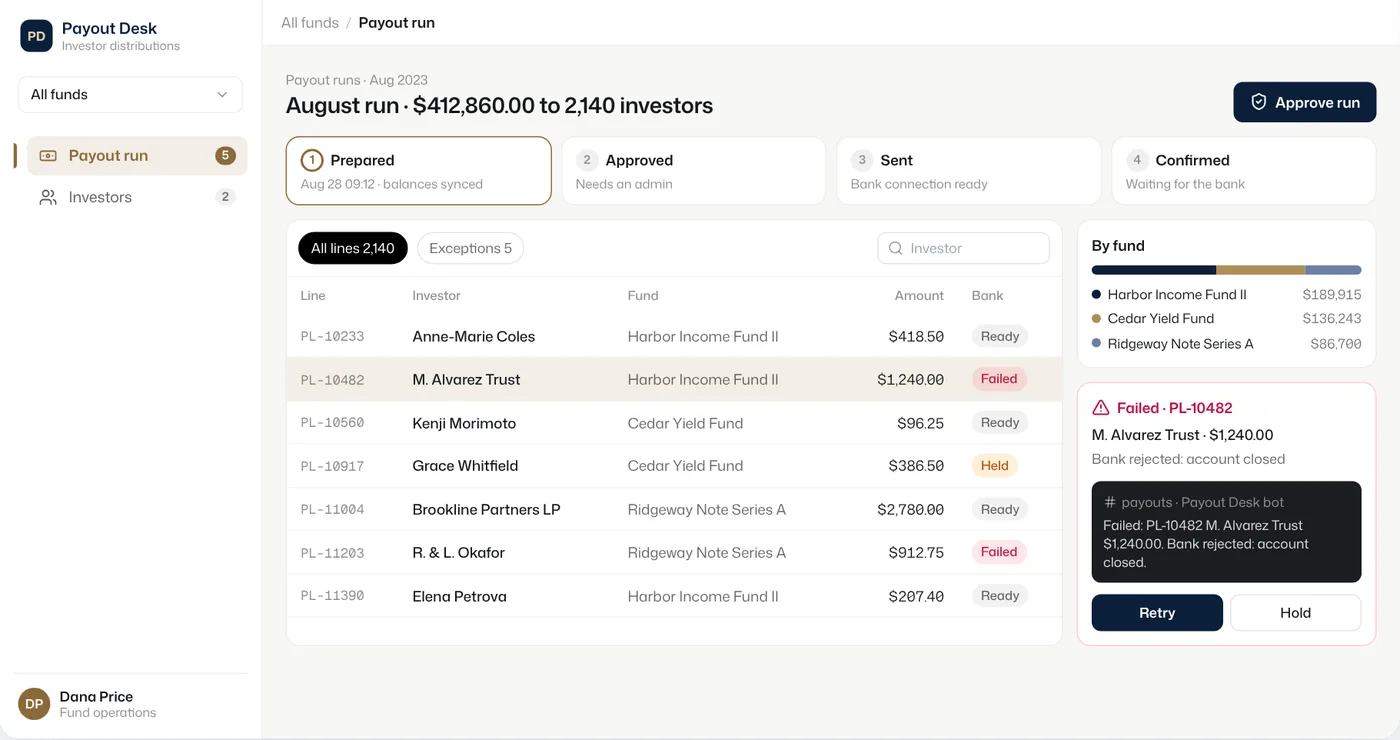
Payouts that move through clear steps, with a person approving
AI runs on · Bubble, Airtable and Make, with the bank and Slack connected; no AI
A private investment firm paid thousands of investors by hand each month. The admin side now moves each payout through prepared, approved, sent and confirmed steps, with a full log. It's the approval half of accounts payable: the part that should stay with a person, made fast.
Watch the short version
The main ideas of this guide are in a three-part Shorts series: invoices into a checked sheet, into QuickBooks without double entries, and into Xero with the names Xero already has. Watch the playlist on YouTube. Each video is about a minute; the steps, prompts and limits are all on this page.
Questions people ask
- Can Claude read scanned invoices?
Yes, clear scans and PDFs read well, including invoices from suppliers it has never seen, because it doesn't need a template per layout. Blurry photos and handwriting are where it guesses, so ask it to leave a cell empty with a note instead of guessing, and check those rows.
- Is AI invoice processing accurate?
Header fields (supplier, number, dates, totals) are usually read well; line items and mixed tax rates are where errors appear. Vendors publish high accuracy numbers, but test on twenty of your own invoices, and use checks (sums, duplicates, supplier names) so you know which rows to open.
- Can Claude enter bills into Xero directly?
Not through Xero's Claude connector, which is read-only. Claude can check your sheet against Xero's contacts and bills and prepare Xero's bill import file; the bills arrive as drafts when you import it. Forwarding invoices to your Xero bills address also creates bills for review.
- Can Claude enter bills into QuickBooks?
Yes, through Intuit's QuickBooks Labs connector, which is in beta and can record bills. Ask Claude to look for each bill first and show you the list before recording anything. Check on the connector page whether it's available in your country.
- How much does invoice automation cost for a small business?
Capture built into QuickBooks Online and Xero is included in their plans. Dext starts at $25.21 a month billed yearly for 250 documents. Claude's Pro plan is $17 a month billed yearly. A custom app on your accounting software's API costs more up front and fits when approvals and volume grow.
- What is three-way matching, and do I need it?
Three-way matching compares the invoice with the purchase order and with proof that the goods or service arrived, before paying. It matters when you raise purchase orders. Most small businesses without purchase orders need the simpler checks in this guide: sums, duplicates, supplier names and changed bank details.
- Do I still need a bookkeeper?
Automation removes the typing, not the judgement. Someone still decides on odd invoices, reconciles the bank and handles tax returns. Many bookkeepers already use these tools; tell yours what you're setting up so the account rules match theirs.
SOURCES
- 1.Claude plans and pricing (claude.com) · checked 15 November 2026
- 2.Schedule recurring tasks in Claude Cowork: paid plans, cloud runs, local folders need the computer awake (support.claude.com) · checked 18 November 2026
- 3.Intuit QuickBooks Labs connector for Claude: bills, expenses, beta, remove the older connector (claude.com) · checked 18 November 2026
- 4.Email receipts and bills to QuickBooks Online: Forward from email, @assist.intuit.com, file types (quickbooks.intuit.com) · checked 18 November 2026
- 5.Import your bills in QuickBooks Online: required columns, 100 bills per import, limitations (quickbooks.intuit.com) · checked 18 November 2026
- 6.Xero connector for Claude: read-only, tools for bills, contacts and chart of accounts (claude.com) · checked 18 November 2026
- 7.Xero and Claude: read-only, sign in and pick the organisation (xero.com) · checked 18 November 2026
- 8.Xero Smart Document Capture: forward bills, review before a record is created, included in US plans (xero.com) · checked 18 November 2026
- 9.Xero ideas forum: bill imports match contacts by name (productideas.xero.com) · checked 18 November 2026
- 10.Importing bills into Xero from CSV: drafts, template headings (usked.com) · checked 18 November 2026
- 11.Xero CSV import errors: separate bill template, one invoice number per bill (invoicedataextraction.com) · checked 18 November 2026
- 12.Is Hubdoc being retired? What Xero has actually said (pileform.com) · checked 18 November 2026
- 13.Dext pricing for a single business (dext.com) · checked 18 November 2026
Prices checked 15 November 2026 · on each vendor's own pricing page: Claude plans, Dext.
Drafted with Claude from our project records; checked and edited by Mark.