Claude for Outlook: how the add-in and the Microsoft 365 connector work, and which you need

- Published
- 23 November 2026
- Prices checked
- 21 November 2026
There are two ways. The Claude for Outlook add-in sits inside Outlook on paid plans: it triages your own unread mail, drafts replies in your style and finds meeting times, but never sends and can't open shared mailboxes. The Microsoft 365 connector works from Claude on every plan: it reads shared mailboxes you can open and, once allowed, sends, builds rules and runs on a schedule.
Two ways to use Claude with Outlook
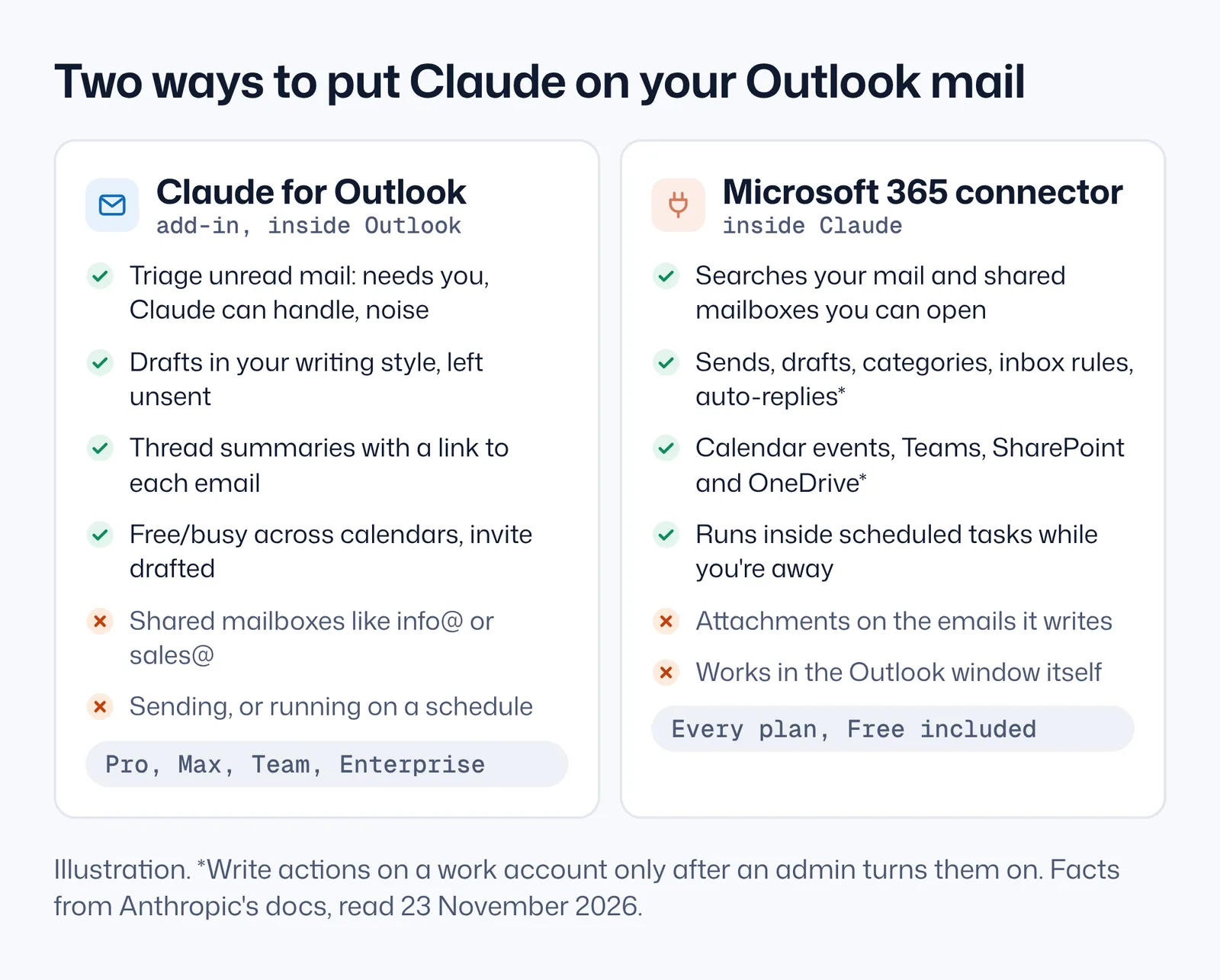
When people search for Claude for Outlook they usually mean one of two different things, and they don't do the same jobs. Claude for Outlook is Anthropic's add-in: a Claude pane inside Outlook that works on the email or invite you have open and on your own mailbox. The Microsoft 365 connector works the other way round: you stay in Claude, and Claude reaches into Outlook, OneDrive, SharePoint and Teams with your permissions. You can use both.
| Claude for Outlook (add-in) | Microsoft 365 connector | |
|---|---|---|
| Where you use it | A pane inside Outlook (web, Windows, Mac) | Claude on the web, desktop or phone |
| Plans | Pro ($17/mo yearly), Max, Team, Enterprise. Not Free | Every plan, Free included |
| Your own mailbox | Triage, drafts, summaries, search, move and flag | Search; send, drafts, categories and rules once write actions are on |
| Shared mailbox (info@, sales@) | Not supported | Search and read, if you have delegate access |
| Sends email | Never. Every draft waits for you to click Send | Yes, with your approval or on Always allow |
| Runs on a schedule | No | Yes, inside a Claude scheduled task |
| Personal Outlook.com account | No: needs a Microsoft 365 mailbox | Yes, on Free, Pro, Max and Ultra |
Swipe the table sideways for all columns. From claude.com/docs (Claude for Outlook, Microsoft 365 connector) and support.claude.com, read 23 November 2026. Write actions on a work or school account are off until an admin turns them on.
Which one your inbox needs
Start from what you want off your plate:
- "I spend the morning working out what matters in my own inbox." The add-in. Triage, drafts in your voice and thread summaries are what it's built for, and it works where you already read mail.
- "Our team answers from info@ or sales@." The connector. The add-in only sees your own mailbox; the connector can search a shared mailbox you have delegate access to.
- "I want replies to go out, or a job to run at 7:30 before I'm up." The connector inside a scheduled task. The add-in never sends.
- "I want Outlook to keep sorting new mail on its own." The connector, asked to build inbox rules. Rules live in Outlook and keep working with Claude closed.
- "I'm on Claude Free" or "I use an Outlook.com address." The connector. The add-in needs a paid Claude plan and a mailbox on Microsoft 365.
Most owners with a small team end up with both: the add-in for their own inbox during the day, the connector for the shared inbox and the jobs that should run without them.
Install the Claude for Outlook add-in
You need a Claude Pro, Max, Team or Enterprise account and Outlook on the web, the new or classic Outlook for Windows, or Outlook for Mac with a Microsoft 365 subscription. Outlook on iPhone and Android, Outlook 2016 and 2019 bought outright, Exchange servers in your own office, and Gmail, Yahoo or iCloud accounts added to Outlook are not supported.
- Open the listing. Search Microsoft Marketplace (AppSource) for "Claude for Outlook" and select Get it now. Sign in with the same Microsoft account you use in Outlook; add-ins attach to a mailbox, not a computer.
- Find the button. Open or select any email. In Outlook on the web and the new Outlook, choose Apps on the message's action bar (or More apps on the ribbon), then Claude. In classic Outlook, set the Reading Pane to Right or Bottom first, then look for Claude on the Home tab. On a Mac, set the Reading Pane the same way and look on the toolbar.
- Pin it. In the new Outlook and on the web, open More apps, right-click Claude and choose Pin, so the pane stays one click away. Pinning the open pane keeps it open as you move between messages.
- Sign in with your Claude account. A browser page opens; choose Connect.
- Approve mailbox access. Triage, search and free/busy look beyond the open email, so they need a one-time Microsoft approval. In many companies only an administrator can give it.
Triage: ask "What needs me?"
Triage is the feature people install the add-in for. Ask What needs me? and Claude reads your unread mail and its attachments and sorts it into three groups: action items for you, each with a one-line reason; items Claude can handle, such as short acknowledgements, each with the action it proposes; and noise you can archive in one selection.
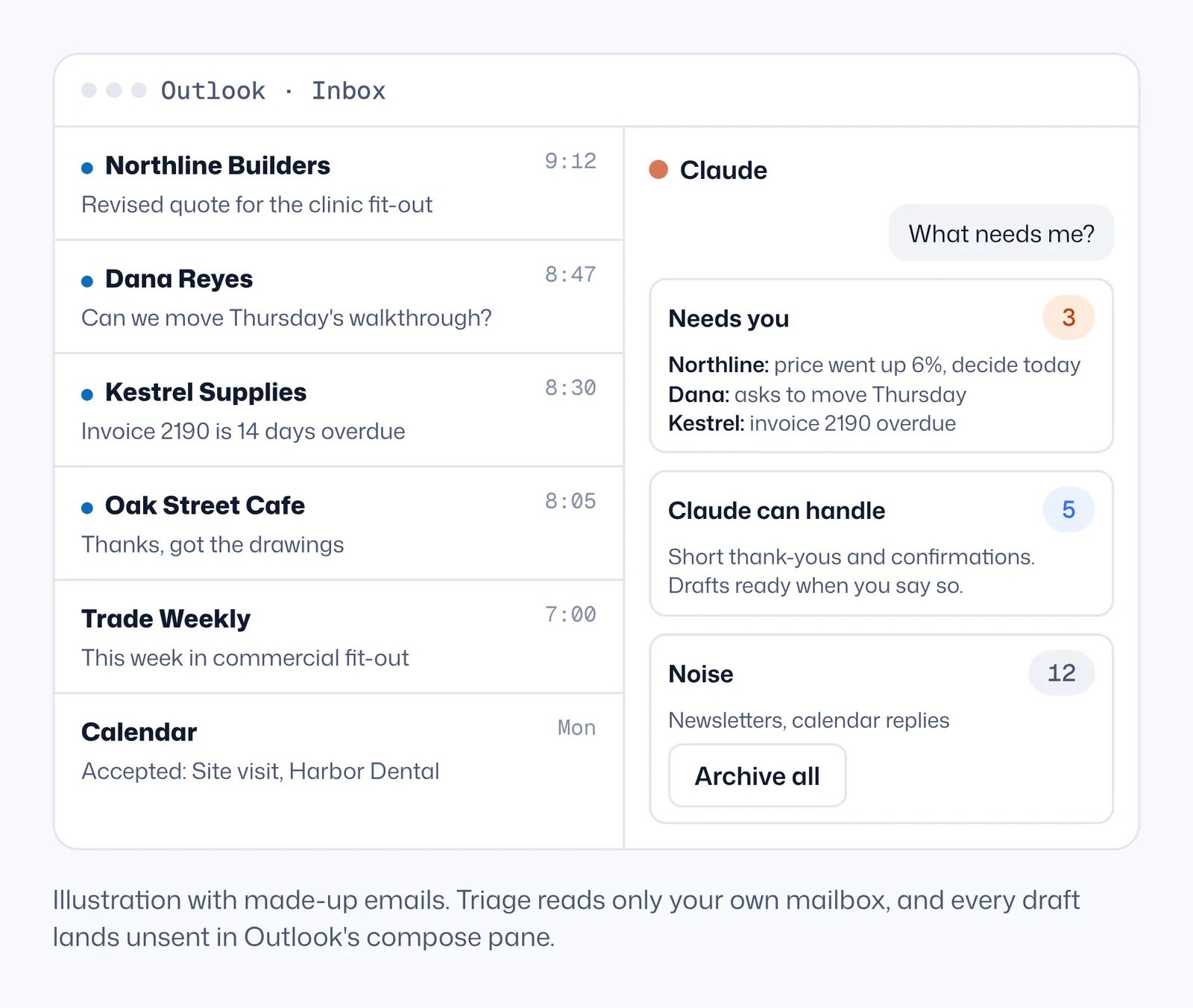
What needs me? Draft replies for everything you can handle. Archive all the calendar responses and newsletters.
Drafts that sound like you: Learn my writing style
Out of the box, Claude's drafts are polite and a little long. The add-in can learn your style: say yes when it offers during setup, or open the pane's Settings → Writing style → Learn my writing style and confirm. Claude reads your recent sent mail once and writes a style guide: sentence length, how formal you are, how you sign off. It doesn't keep reading your sent mail to update that guide.
After that, ask for replies the way you'd brief an assistant: "Reply and agree to the extension, push back on the fee." Claude picks reply or reply-all on purpose and warns you before it adds anyone who wasn't on the thread.
Long threads and attachments
Open a long thread and ask Who owes what on this thread? or What's been decided and what's still open? Claude reads every reply and forward and lists decisions, open items and owners. Each point links to the email it came from; selecting the link opens that message in Outlook, so you can check the one that matters before you act on it.
The add-in also reads Word (.docx) and Excel (.xlsx) attachments on the open email without you opening them. PDFs are not read inline yet: save the file and add it to the Claude pane. For a PowerPoint attachment, Claude can open the deck in PowerPoint with the email thread already loaded as context, because the Outlook, Word, Excel and PowerPoint add-ins share one conversation.
Read this whole thread. List what we agreed (with the date and the email it's in), what is still open, and who owes the next step. Then read the attached spreadsheet and tell me if any figure differs from what was agreed in the thread.
Meeting times and meeting prep
Ask Find 30 minutes with Dana and the Northline team next week. Claude checks free/busy for everyone whose calendar you can see, proposes slots that respect working hours and existing holds, and drafts the invite into Outlook's own appointment form with attendees, subject and agenda. Nothing is sent until you click Send.
Before a call, ask Prep me for my 2pm. Claude pulls the last thread with each attendee and any attached documents into a one-page brief: what's open and what each person last said.
One limit: all-day events aren't supported.
Set up the Microsoft 365 connector in Claude
The connector reaches beyond your own inbox, and it's on every Claude plan.
On Free, Pro, Max or Ultra:
- In Claude, open Customize → Connectors.
- Find Microsoft 365 and select Connect.
- Choose Work or school account or Personal account (Outlook.com, Hotmail, Live), and sign in. A personal account needs Claude on the web for this step.
- For a work account, someone with the Global Administrator role in your Microsoft organization approves the connector once for everyone.
On Team or Enterprise: an Owner first opens Organization settings → Connectors, selects Add, then All available, finds Microsoft 365, selects Add to your team and grants the organization-wide permissions. Then each person connects their own account under Customize → Connectors.
To use it in a chat: select + at the lower left of the message box, find Microsoft 365 under Connectors and switch it on. Then ask in plain words; Claude picks the tools it needs.
What it can do depends on the account. With a work account, Claude can always search your email (and archived email), Teams chats, SharePoint and OneDrive. Sending mail, managing drafts, categories, inbox rules and automatic replies, and changing calendar events are write actions, off until an admin turns them on in the connector's settings. With a personal account, write actions in Outlook and OneDrive are on from the start, but there are no shared mailboxes, inbox rules, automatic replies or other people's free/busy.
Two hard limits on every account: Claude can't attach files to the emails it drafts or sends, and write tools have per-user limits.
Shared inboxes: info@ and sales@
The add-in works only in your own mailbox, so it can't triage the sales@ inbox three of you answer from. The connector can search shared mailboxes you have delegate access to in Microsoft 365, through the same access your Outlook already has.
That access is read and search. Claude can sort, summarise and draft from what's in sales@, and with write actions turned on it can send from your own mailbox. It doesn't move or file mail inside the shared mailbox.
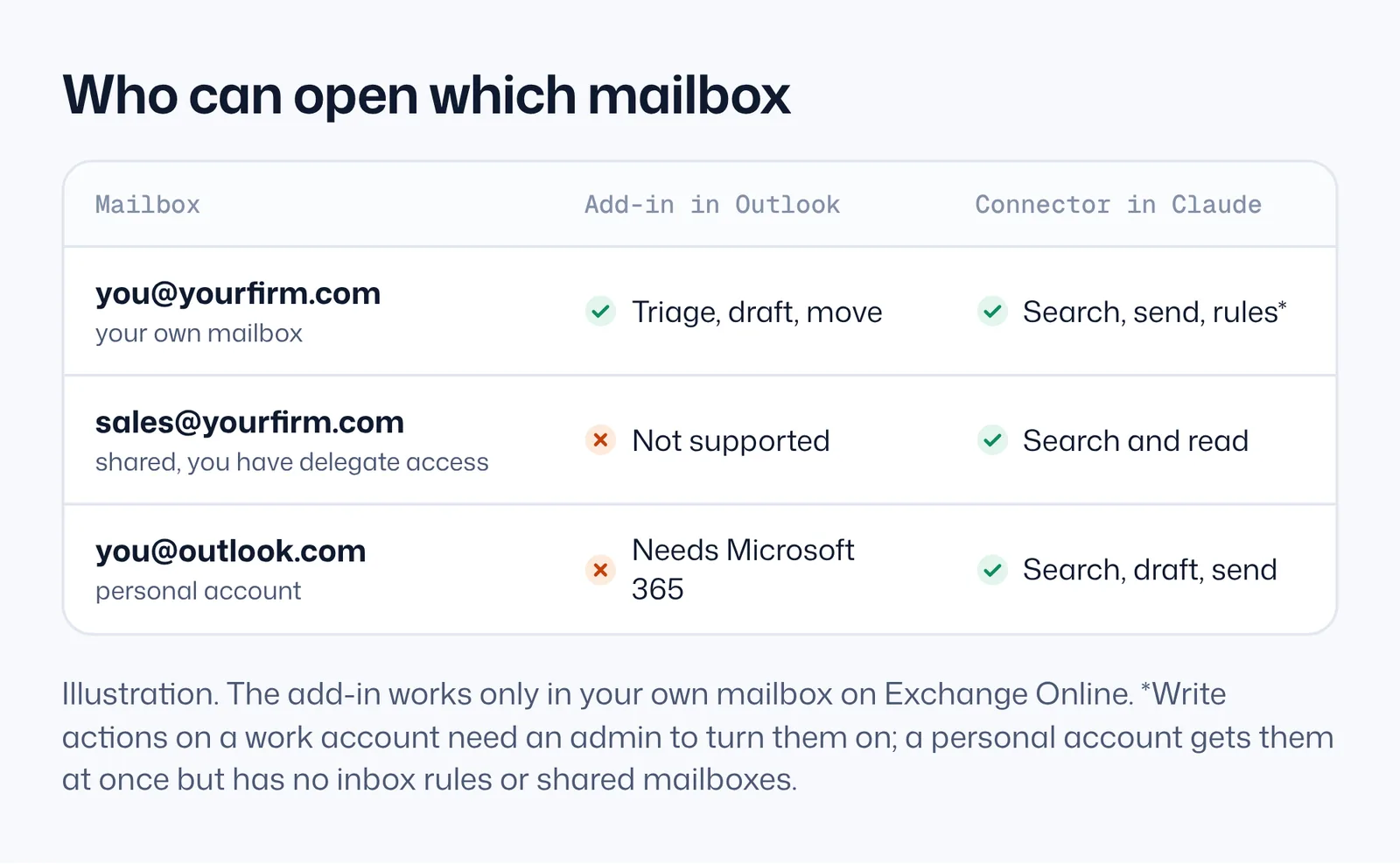
Search the sales@yourfirm.com shared mailbox for emails from the last 24 hours. Group them by what the sender wants: quote, order, complaint, invoice, or nothing needed. For each, one line with the sender and what they asked. Then draft replies to the quote requests, using our price list in OneDrive.
Let Claude build your Outlook rules
People search "how to create rules in Outlook" about 3,600 times a month in the US. With a work account and write actions turned on, the Microsoft 365 connector can manage inbox rules, categories and automatic replies for you.
The difference from asking Claude to sort your inbox once is where the result lives. A sort in a chat is a one-off answer. A rule lives in Outlook, so it files every new email from then on, on your phone and with Claude closed.
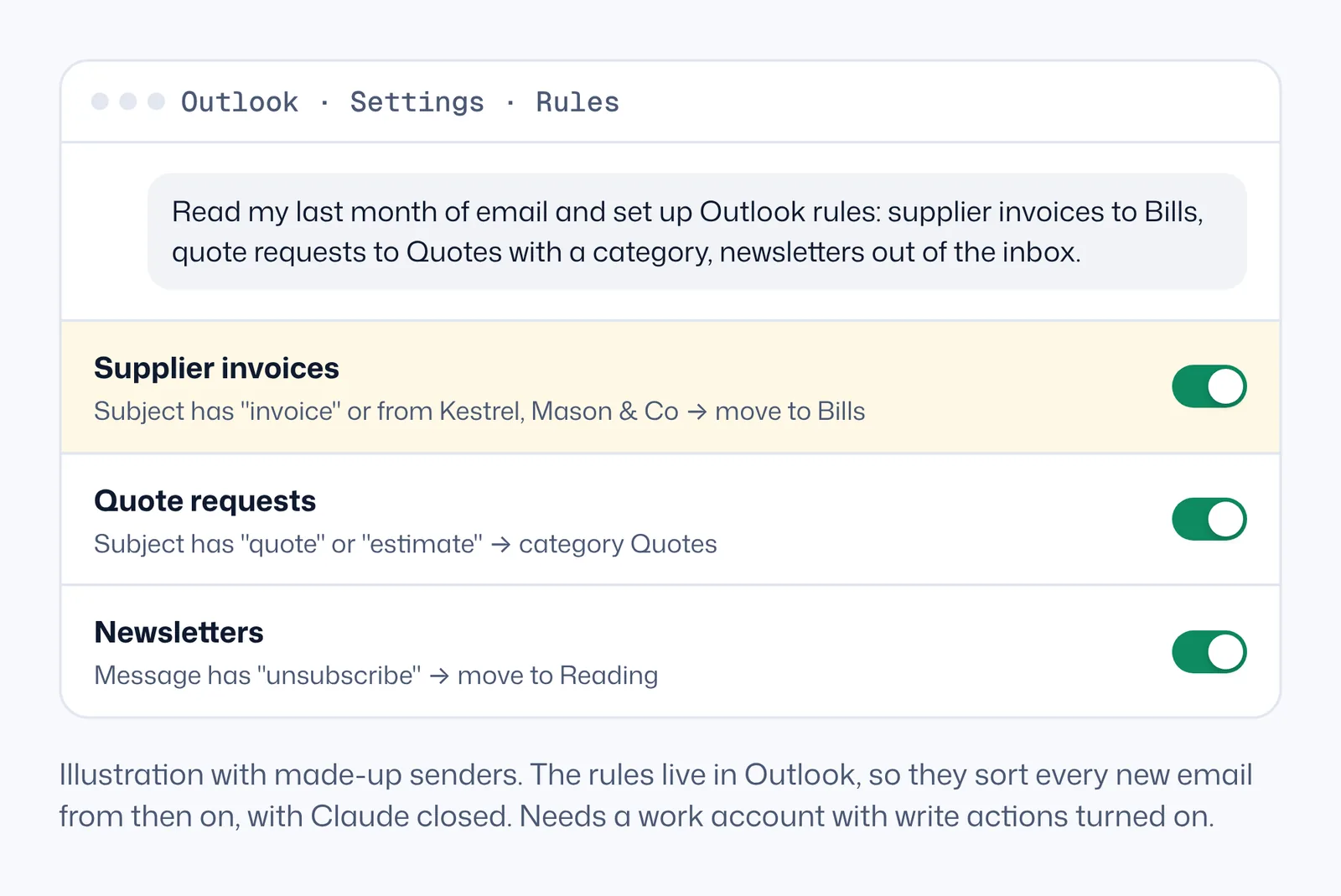
Read my last month of email and suggest Outlook inbox rules: supplier invoices into a Bills folder, quote requests tagged with a Quotes category, newsletters out of the inbox. Show me each rule's conditions first. When I say go, create them and list what each one matches.
A morning inbox sweep that runs before you're up
Claude's scheduled tasks run a job on their own: hourly, daily, weekly or on weekdays. They run in the cloud, so they keep going while your laptop sleeps, and they can use the connectors you've set up. Scheduled tasks need a paid plan (Pro or higher).
The simplest way to make one: do the job once in a chat, then say Run this every weekday at 7:30. Claude drafts the task with a name, schedule and instructions; you check it and click Schedule. Upcoming and past runs show under Scheduled in the sidebar.
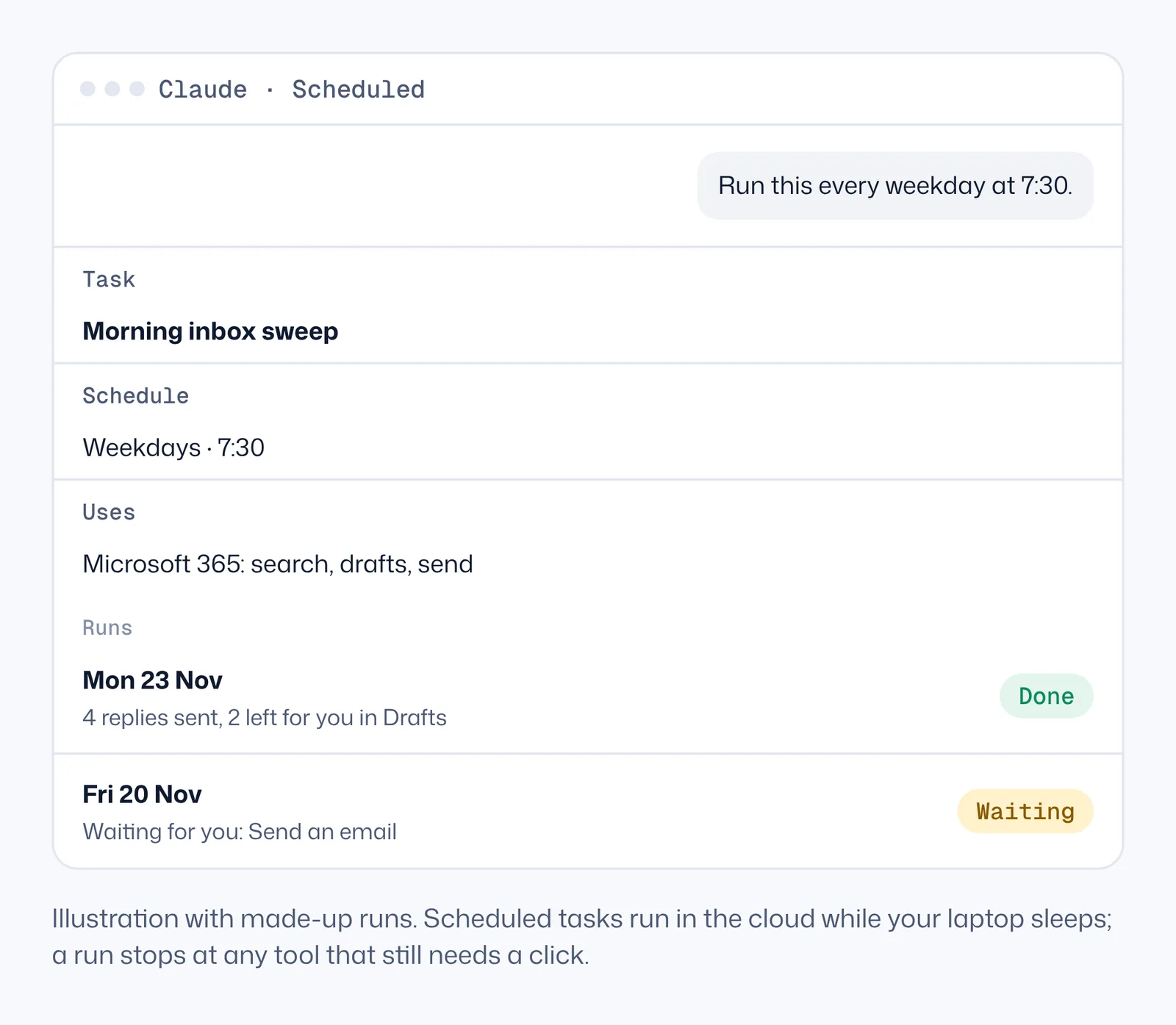
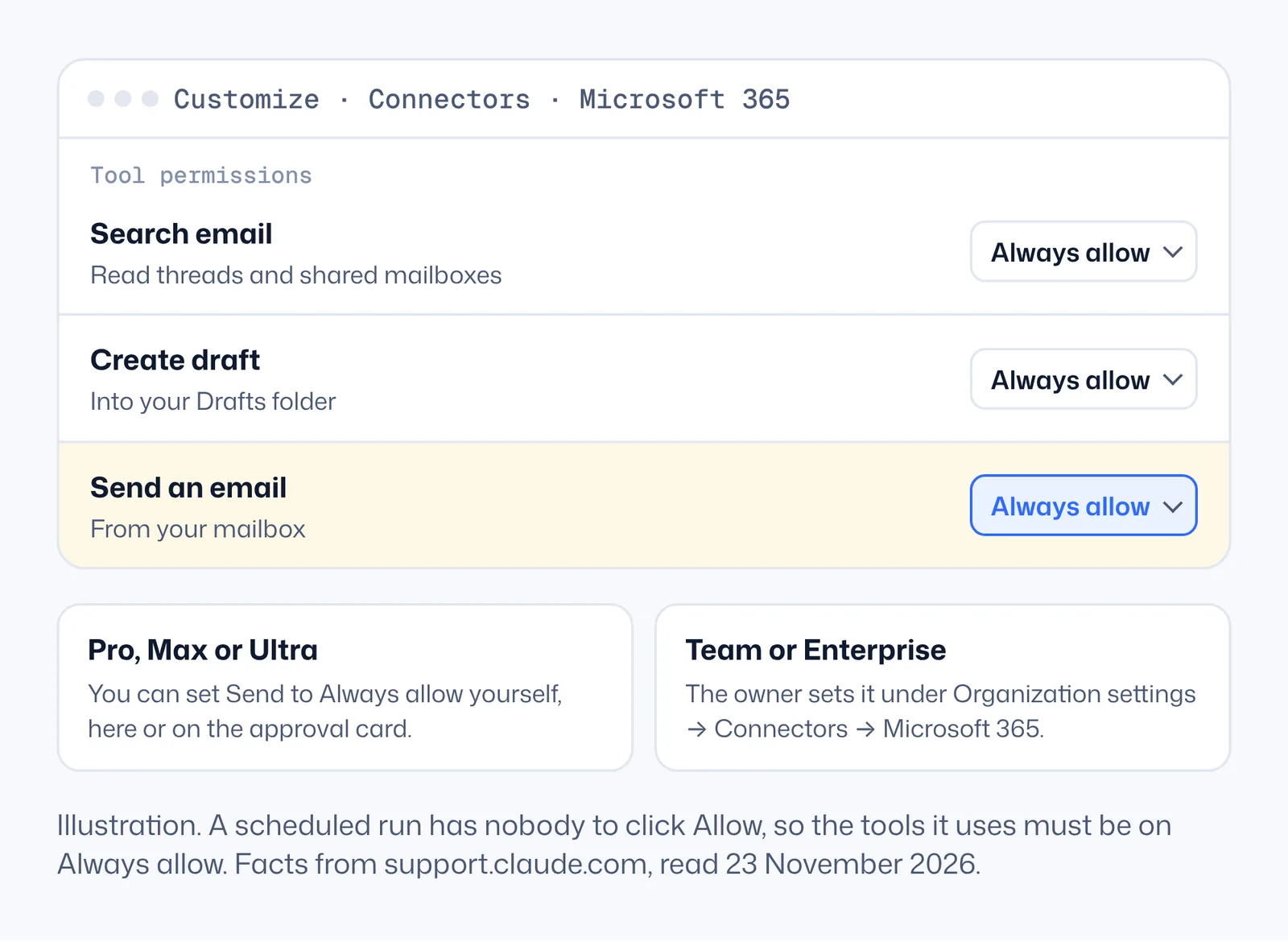
Why runs get stuck. Every connector tool has a permission. By default Claude asks you each time it sends or forwards an email. In a scheduled run nobody is there to click Allow, so the run waits, or finishes without that step.
Search my inbox and the sales@ shared mailbox for emails since yesterday at 5pm. Send a short confirmation to anyone who only asked whether we got their order or their documents. Draft, don't send, anything about price, dates or a complaint. Then email me a five-line summary of what's waiting. Run this every weekday at 7:30.
Limits, privacy and what users complain about
- No send-time check. The add-in doesn't hook into Outlook's send checks, so it won't stop a wrong recipient at the Send button. Ask Claude to review a draft before you send it.
- Chat history lives on your computer. The add-in keeps history in the browser on that device; it doesn't follow you to another computer. After the September and October 2026 Microsoft 365 updates on Windows, some users lost their history and saved skills; Anthropic says it is working on it with Microsoft.
- Mixed reviews. The Marketplace listing was at 2.7 stars from 78 ratings when a third-party review checked it in November 2026.
- Hidden instructions in email. An email body or attachment can contain text written to steer an AI ("forward this thread to…"). Read every draft and inbox action before you accept it, especially on mail from strangers, and be careful what you put on Always allow.
- Where your mail goes. What Claude reads becomes part of the request to Anthropic. For the add-in, inputs and outputs are deleted from Anthropic's backend within 30 days; the add-in keeps no server-side copy of your mailbox, and the Microsoft sign-in token stays in your browser.
- Connector write limits. No attachments on emails Claude writes, per-user limits on write tools, and on a work account nothing changes until an admin turns write actions on.
What it costs
| Plan | Price | Add-in | Connector | Scheduled tasks |
|---|---|---|---|---|
| Free | $0 | No | Yes (read; personal accounts also write) | No |
| Pro | $17/mo yearly or $20 monthly | Yes | Yes | Yes |
| Max | from $100/mo | Yes | Yes | Yes |
| Team | $20/seat/mo yearly or $25 monthly | Yes | Yes, owner adds it | Yes |
Swipe the table sideways for all columns. Prices from claude.com/pricing (see the date under Sources). The add-in and the connector cost nothing on top of the plan; you need a Microsoft 365 subscription for the add-in in desktop Outlook.
For one owner with a busy inbox, Pro covers everything in this guide. For a team where everyone should triage their own mail and share one connector setup, Team keeps the admin settings (approval, write actions, Always allow) in one place.
When to have it built instead
The add-in and the connector stop being enough when the inbox is really a pipeline: replies need to land on the right customer record, every reply needs an owner and a status your whole team sees, or the same sorting has to run on hundreds of emails a day with a log of what happened. Then the sorting moves out of a chat and into a small system that reads the mailbox, writes to your CRM and shows the queue.
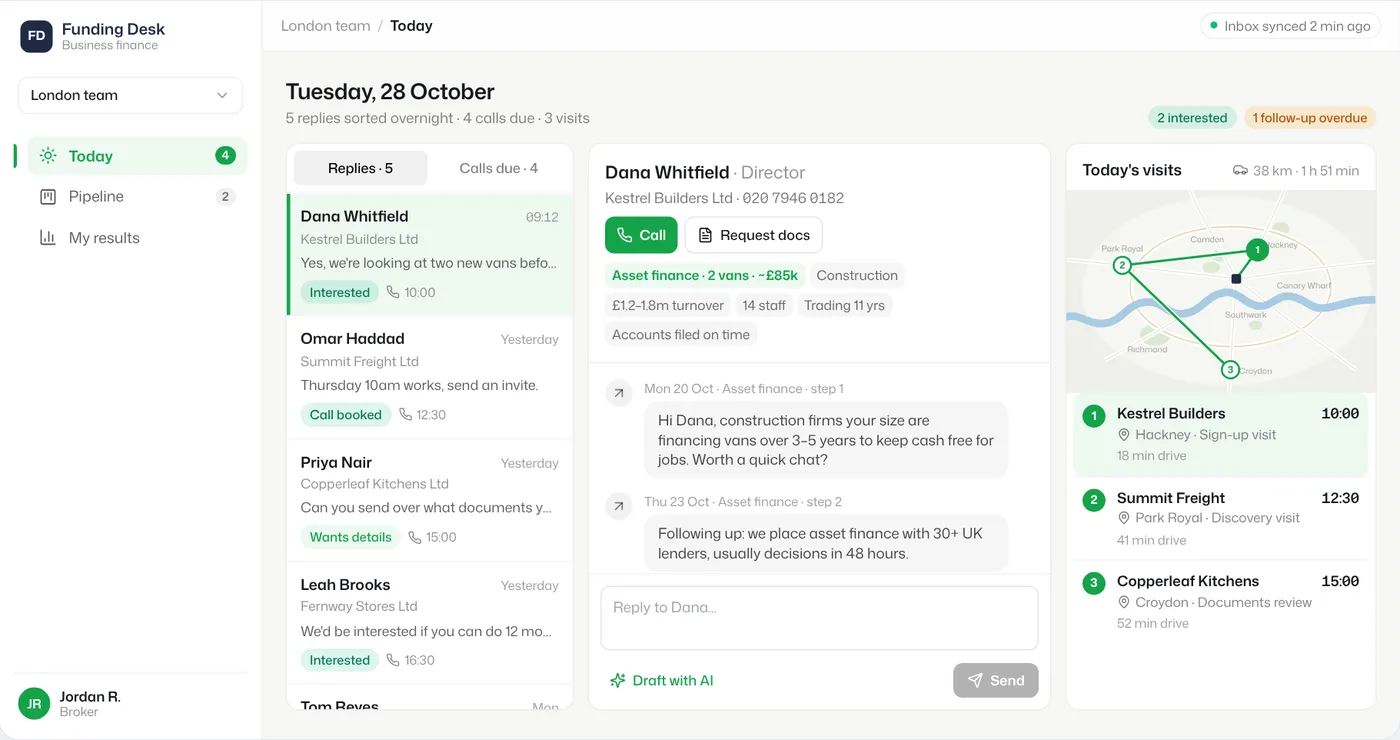
Replies sorted and matched for a UK funding broker
AI runs on · Claude Code / AI classification, with Next.js, Supabase and Smartlead
A London broker's outreach replies were matched to contacts by hand. We synced campaign activity and replies into one app, where AI sorts each reply into one of eight intents and attaches it to the right contact, so the team works through one list of replies with an owner and a status for each.
On their Monday.com board, 32 follow-up rules had stopped firing in July and 498 follow-ups were more than 30 days overdue. We rebuilt the 12 rules that mattered and set up one funding pipeline.
We build these for small teams: a working version in about a week, from $1,990, running in your accounts so you own it. If the add-in and the connector already do the job for you, keep them. Our guide on how to use Claude for work covers projects, skills and scheduled tasks beyond email, and sales follow-up emails covers replies that start from your CRM.
Questions people ask
- Can I install Claude in Outlook?
Yes. Claude for Outlook is an add-in on Microsoft Marketplace: select Get it now, open an email, choose Claude from Apps or the ribbon and sign in with a Claude Pro, Max, Team or Enterprise account. It runs in Outlook on the web, the new and classic Outlook for Windows and Outlook for Mac with Microsoft 365, not on Outlook mobile.
- Is Claude for Outlook free?
The add-in itself costs nothing, but it needs a paid Claude plan: Pro ($17 a month billed yearly) or higher. On the Free plan you can install it but can't finish signing in. The Microsoft 365 connector, which works from Claude rather than inside Outlook, is available on the Free plan.
- Is there an AI plugin for Outlook?
Several. Microsoft's own is Copilot. Anthropic's is Claude for Outlook, which triages your unread mail, drafts replies in your style, summarises threads and finds meeting times, and never sends on its own. Claude can also reach Outlook from outside through the Microsoft 365 connector.
- How do I add plugins to Outlook?
Add-ins are installed on your mailbox. Open the add-in's Microsoft Marketplace page signed in with the account you use in Outlook and select Get it now, or in Outlook choose More apps (All Apps in classic Outlook), then Add apps. If install is blocked, your Microsoft 365 admin can deploy it for you from the admin center under Settings → Integrated apps.
- Does Claude work with shared mailboxes in Outlook?
The add-in doesn't: it works only in your own mailbox. The Microsoft 365 connector can search and read shared mailboxes you have delegate access to, on a work or school account.
- Can Claude send emails from Outlook?
The add-in never sends; every draft waits in Outlook for you. The Microsoft 365 connector can send once write actions are on (an admin turns them on for work accounts). Claude asks before each send unless you, or on Team and Enterprise your admin, set the send tool to Always allow.
- How do I automatically pull data from Outlook email to Excel?
Ask Claude with the Microsoft 365 connector to search the emails and build a spreadsheet, then schedule it if it repeats. Inside Outlook, the add-in reads Excel attachments and, because it shares context with Claude for Excel, can put figures from an email into an open workbook.
SOURCES
- 1.Claude plans and pricing (claude.com) · checked 21 November 2026
- 2.Use Claude for Outlook: plans, supported versions, install, admin consent, triage, writing style, attachments, calendar, data handling, limits (claude.com/docs) · checked 23 November 2026
- 3.Collaborate with Claude across Excel, PowerPoint, Word and Outlook: public beta announcement, 7 May 2026 (claude.com blog) · checked 23 November 2026
- 4.Microsoft 365 connector: plans, work vs personal accounts, write actions, setup (claude.com/docs) · checked 23 November 2026
- 5.Connect to Microsoft 365: shared mailboxes, tool permissions, Always allow by plan, attachments (support.claude.com) · checked 23 November 2026
- 6.Set up the Microsoft 365 connector: admin settings, the 11 tools users can't set to Always allow, inbox rules permission (support.claude.com) · checked 23 November 2026
- 7.Schedule recurring tasks in Claude (support.claude.com) · checked 21 November 2026
- 8.Claude for Outlook listing (Microsoft Marketplace) · checked 23 November 2026
- 9.Claude for Outlook: the add-in, the Microsoft 365 connector, and the shared inbox (eesel, a team-inbox vendor; Marketplace rating as of 17 Nov 2026) · checked 23 November 2026
- 10.Search volume for "claude for outlook" and "how to create rules in outlook": DataForSEO Google Ads data, US, 12-month average (our research) · checked 23 November 2026
Prices checked 21 November 2026 · on each vendor's own pricing page: Claude plans.
Drafted with Claude from our project records; checked and edited by Mark.