How to use Claude for work in 2026: one Claude, and where each job goes

- Published
- 21 November 2026
- Prices checked
- 21 November 2026
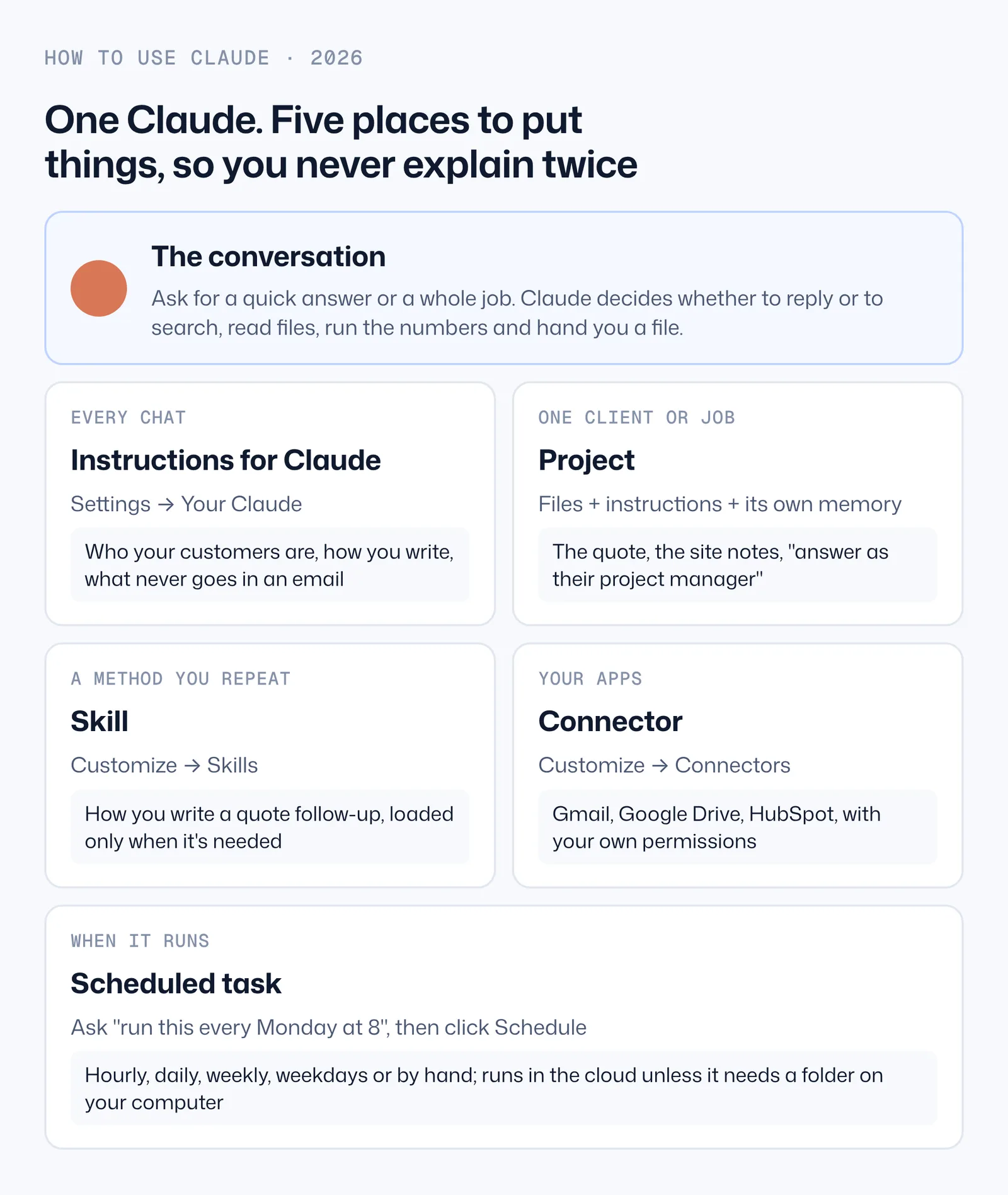
Claude is now one conversation: ask for a quick answer or a whole job and it decides how to do it. Using it well is about where you put things. Rules for every chat go in Instructions for Claude, each client in a Project, a method you repeat in a skill, your apps in connectors, and anything that should run without you in a scheduled task.
Chat and Cowork are now one Claude
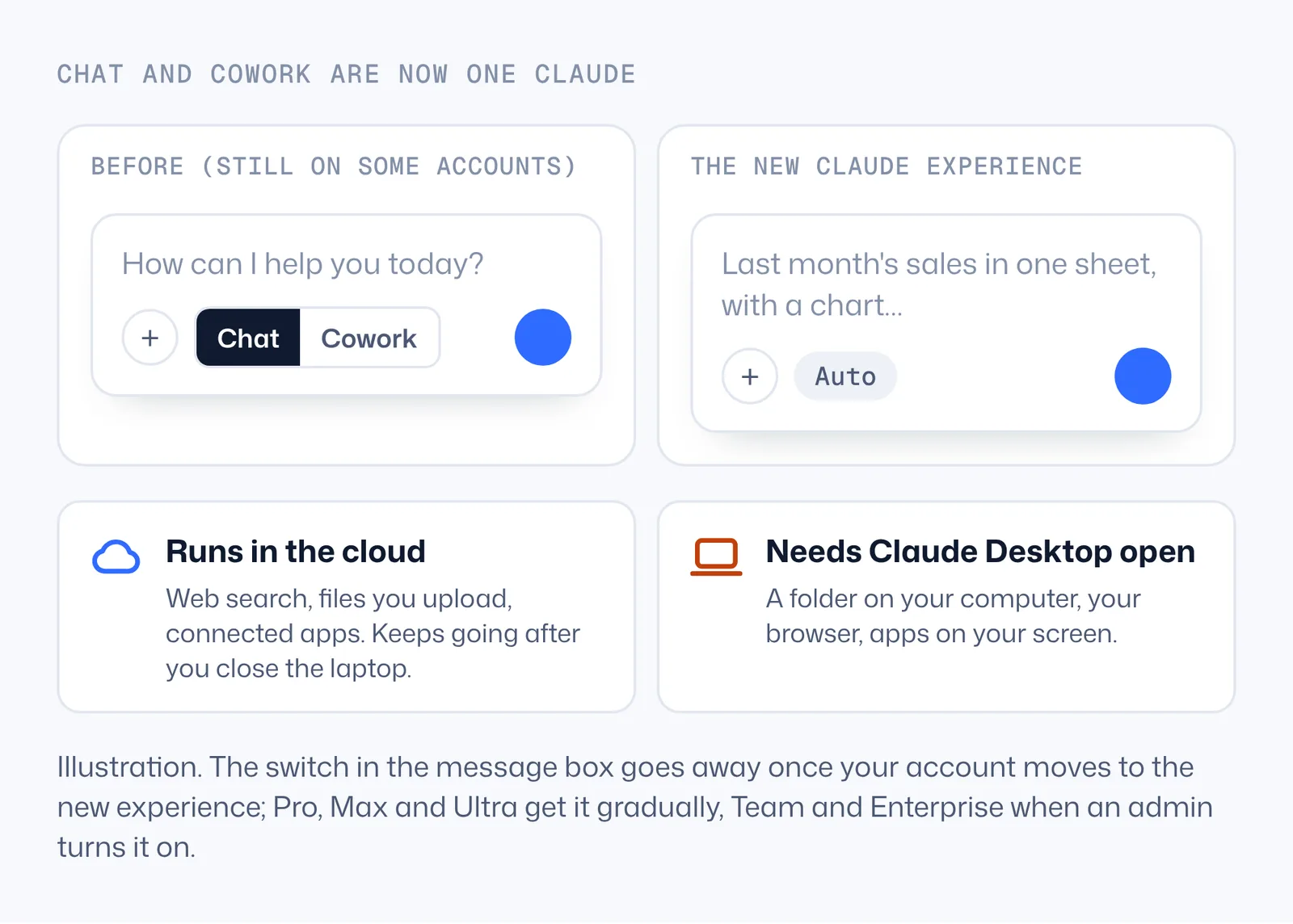
Until this autumn you had to choose before you typed. Chat was for questions and drafts; Cowork was for jobs that read files, used your apps and handed back a finished document. Since September 2026 Anthropic has been merging the two. In the new Claude experience there is one conversation: you ask, and Claude decides whether to answer straight away or to search the web, read files, run code and build a spreadsheet or a deck.
What that means day to day:
- Describe the result you want. "Last month's sales in one sheet, with a chart and three lines on what changed" is a better request than a list of instructions. Claude plans the steps.
- Long jobs keep going without you. A task that works on the web, on uploaded files or in connected apps keeps running in the cloud after you close the laptop or leave the page. You can run several at once.
- Your computer still matters for local work. Anything that uses a folder on your computer, your browser or apps on your screen needs Claude Desktop open.
- Follow tasks from your phone. A task you started at your desk shows up in the Claude mobile app, where you can watch it, answer its questions and redirect it.
- Real files come back. Documents, spreadsheets with working formulas and PowerPoint-compatible presentations, which you download or keep refining in the chat.
Do you have it yet? If your message box still shows a Chat and a Cowork option, your account hasn't moved. Pro, Max and Ultra accounts are moving gradually. On Team and Enterprise plans an admin turns on the "Chat and Cowork unified" setting; on Enterprise it switches on by default from 16 November 2026, and Team's separate experience ends on 1 February 2027. Your chats, tasks, projects and settings carry over, and once an account moves it can't switch back.
Where each thing goes: the five places that make Claude yours
Used as a plain chat box, Claude needs the same context retyped every time: who the client is, how they like emails written, which spreadsheet to use. Claude has a place for each of those, and once they are filled in, a two-line request does what used to take a page.
| Place | Put here | Where to find it | Applies to |
|---|---|---|---|
| Instructions for Claude | Who your customers are, how you write, words and promises you never use | Settings → Your Claude | Every chat |
| Project | One client or recurring job: its files, its instructions, its own memory | Projects in the sidebar → + | Chats and tasks inside that project |
| Skill | A method you repeat: how you write a quote follow-up, how you build the monthly report | Customize → Skills | Loaded only when the task needs it, in any chat or project |
| Connector | Your apps: Gmail, Google Drive, Microsoft 365, HubSpot, Slack… | Customize → Connectors | Any chat where it's switched on, with your own permissions |
| Scheduled task | A job that should run without you starting it | Ask in any chat: "run this every Monday at 8" | Runs hourly, daily, weekly, on weekdays or by hand |
Swipe the table sideways for all columns. Menu names as shown on support.claude.com, checked 21 November 2026. Accounts still on the older layout show Instructions for Claude under Settings → Account.
A simple test for where something belongs:
- Would it be true in every conversation? Instructions for Claude.
- Is it about one client or one job? A project.
- Is it a way of doing something you'll ask for again? A skill.
- Does Claude need to read or change something in another app? A connector.
- Should it happen without you asking? A scheduled task.
Your first hour: set Claude up for your business
You need a Claude account, and a paid plan (Pro or higher) for scheduled tasks and for more than five projects. No code, no terminal. In order:
- Install Claude Desktop (Mac or Windows) as well as using claude.ai in the browser. The cloud does most of the work, but folders on your computer and your browser only work through the desktop app.
- Write your Instructions for Claude. Settings → Your Claude. Ten lines is plenty (see the next section).
- Turn on file creation. Settings → Capabilities → "Code execution and file creation" (newer layouts call it "Create and edit files"). Skills and real spreadsheets need it.
- Connect the two apps you live in. Customize → Connectors → the + next to Connectors → pick Gmail or Microsoft 365, and Google Drive, → Connect → sign in.
- Make one project for your busiest client or your most repeated job, with its files and three lines of instructions.
- Ask for one real job in that project and check the result line by line.
- Save the method as a skill once you've corrected the result twice the same way.
- Schedule one job that you currently do every week by hand.
Instructions for Claude: the rules for every chat
Open Settings → Your Claude and write what should be true every time Claude answers you. Anthropic's examples: the approaches you prefer, the terms you use, the situations you deal with often, and how you like to communicate. For a business owner that usually means four things:
- The business in two sentences: what you sell, to whom, where.
- How you write: spelling (UK or US), tone, length, sign-off.
- Numbers: currency, with or without tax, how you round.
- Never: promises you don't make (start dates, discounts), words you don't use.
We are a five-person fit-out company in Leeds. Clients are dental clinics, cafes and small offices. Write in UK English, short sentences, no exclamation marks. Sign emails "Sam". Prices are in pounds and without VAT unless I say otherwise. Round to the nearest pound. Never promise a start date before a site visit. Never offer a discount unless I ask. When you're unsure about a fact about a client, ask me instead of guessing.
Projects: one per client or recurring job
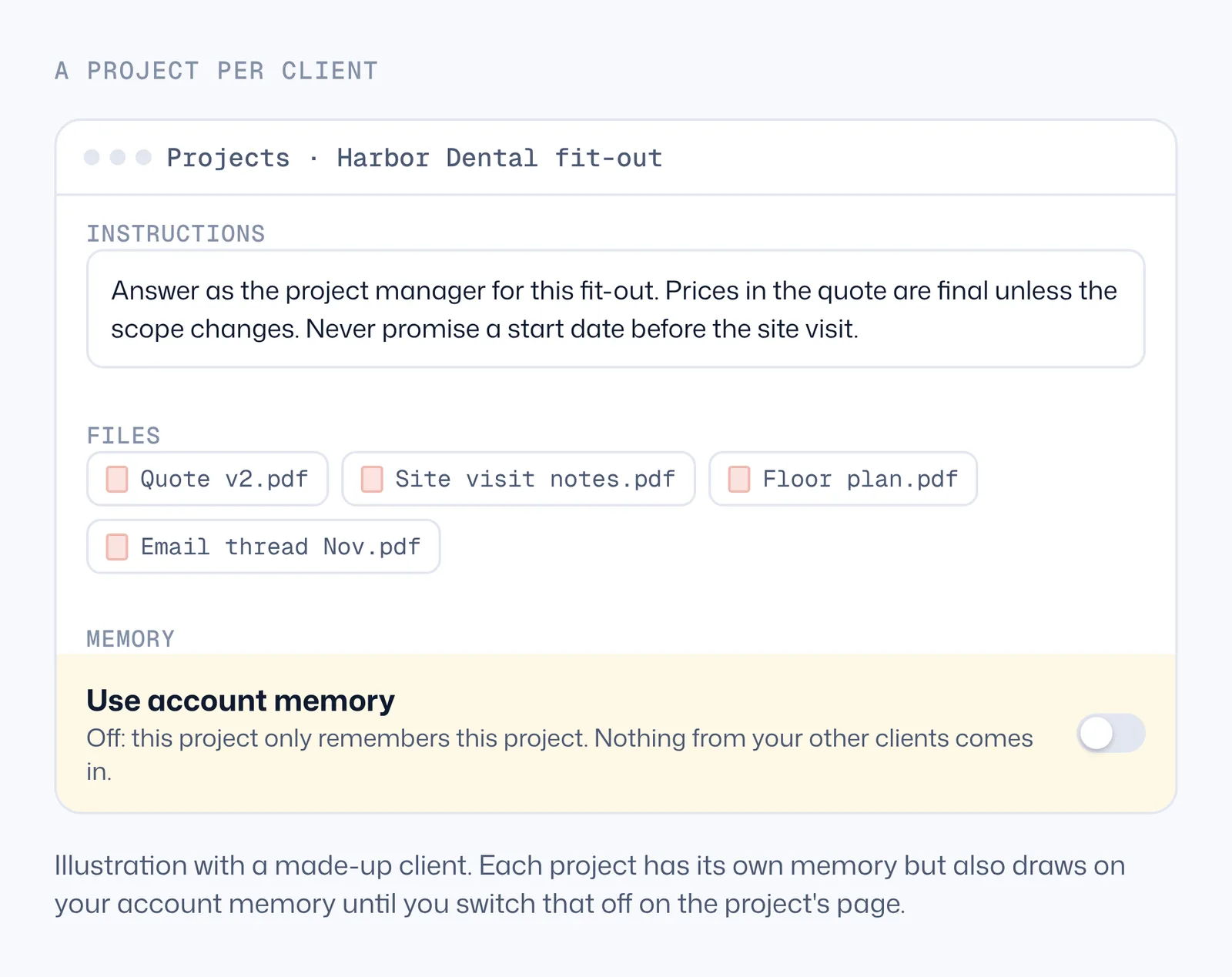
A project is a workspace with its own chats, files, instructions and memory. Everything you ask inside it starts with that background, so you stop pasting the quote, the floor plan and the email thread into every chat.
Set one up: click Projects in the left sidebar, then +. Start from scratch, use an existing folder from your computer, or import a chat project. Add:
- Files: the quote, the notes from the site visit, the contract, the last email thread exported as PDF. On paid plans, when the files get close to the limit of what Claude can hold at once, Claude switches to searching them (retrieval), which Anthropic says expands capacity up to ten times.
- Instructions: who Claude should be in this project ("answer as the project manager for this fit-out"), what is fixed, what to check with you.
- Scheduled tasks, if a job belongs to this client only (a Friday progress note, say).
Good projects for a small business: one per large client, one per recurring job (monthly accounts, hiring, tenders), one for your price list and past proposals.
Read every file in this project. Give me a short list: what we agreed (with the date and the file it's in), what is still open, and what the client asked that nobody has answered yet. If two files disagree, show both and say which is newer.
Projects and teams. On Team and Enterprise plans you can share a project with named people or the whole organization, as "Can view" (read and chat) or "Can edit" (change files and instructions). On the Free plan you get five projects. Anthropic is also rolling out a new kind of project, starting in Claude Code, where one project runs several threads in parallel in the cloud; existing chat and Cowork projects stay as they are for now.
Skills: turn the prompt you keep pasting into a method
A skill is a small folder of instructions (and sometimes scripts and examples) that Claude loads only when a task needs it. Unlike a project, which holds background for one client, a skill holds a method and works in any chat or project.
Anthropic ships its own skills for Excel, Word, PowerPoint and PDF files, which Claude uses on its own when you ask for those files. Your own skills cover the jobs you repeat: how you write a quote follow-up, how you turn a site visit into a scope, how you build the Monday report.
When to make one: the third time you paste the same long prompt, or the second time you correct Claude the same way.
How, without code:
- Start a new chat and say what you want to capture: "I want a skill for following up on quotes." Attach two or three of your best real examples.
- Answer Claude's questions: when you use it, what a good result looks like, what to avoid. Give enough detail that a capable new hire could follow it.
- Claude builds the skill (it uses Anthropic's skill-creator skill), writing a SKILL.md file and organizing your examples. Save it.
- Find it under Customize → Skills, with a switch to turn it off. Test it in a new chat and open the steps Claude took to check it loaded the skill. If it didn't, ask Claude to change the skill.
Skills are on every plan, Free included, but they need "Code execution and file creation" turned on in Settings → Capabilities.
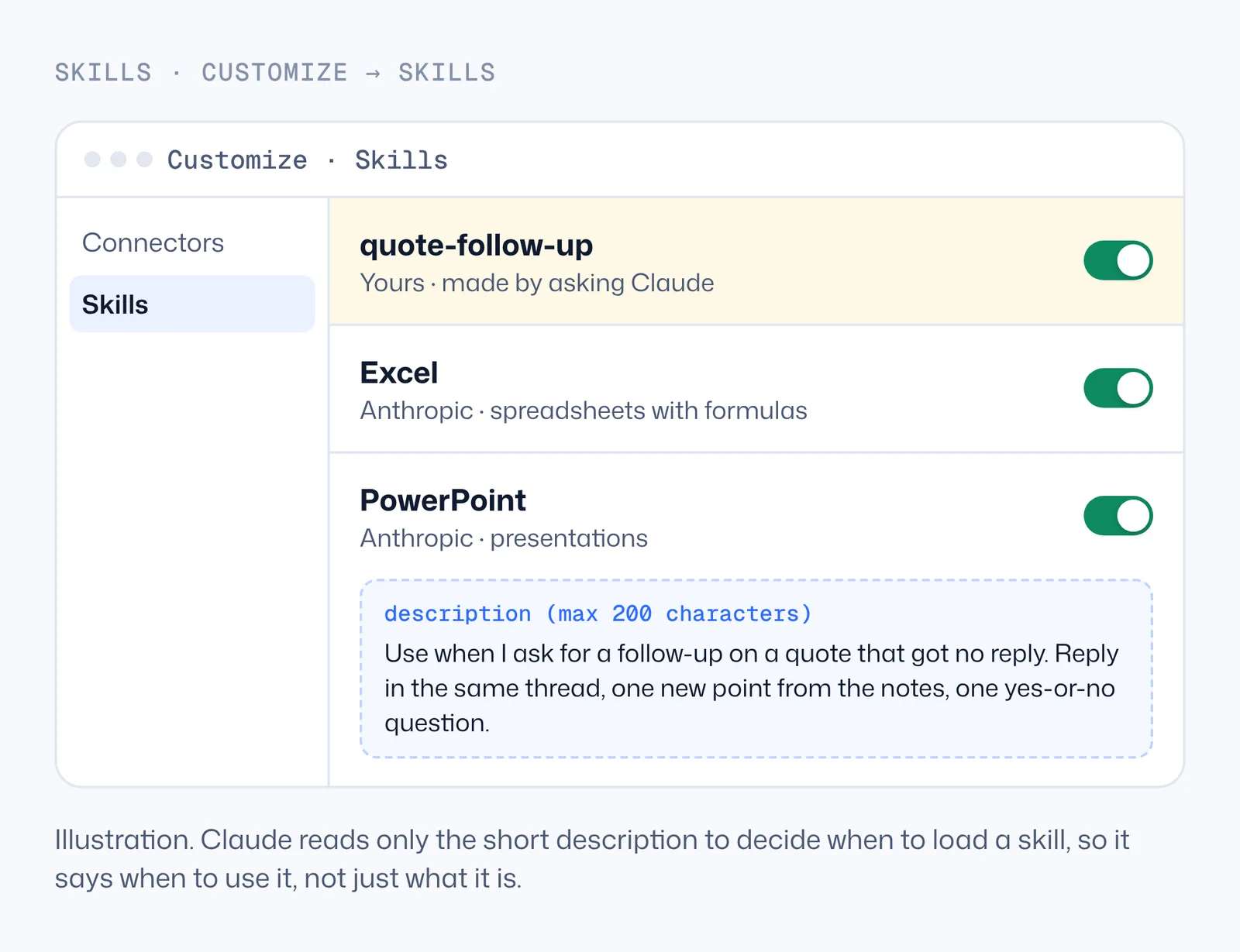
Turn what we just did into a skill called quote-follow-up. Description: "Use when I ask for a follow-up on a quote that got no reply." Include my three example emails, the rules I corrected you on in this chat, and a check at the end: under 90 words, one new point from the notes, one yes-or-no question. Ask me anything you need first.
Connectors: let Claude read and act in your apps
Connectors link Claude to the apps your work lives in, so a request can use your real emails, files and records instead of what you paste in.
Connect one: Customize → Connectors → the + next to Connectors → browse or search → click the app → Connect (or Install) → sign in with your own account. On Team and Enterprise plans an owner first adds the connector for the organization; then each person signs in. To choose which connectors a single chat may use, click + under the message box (or type /), open Connectors and switch them on or off.
What Claude can see: exactly what your own account in that app can see, nothing more. If your Gmail user can't open a shared mailbox, neither can Claude.
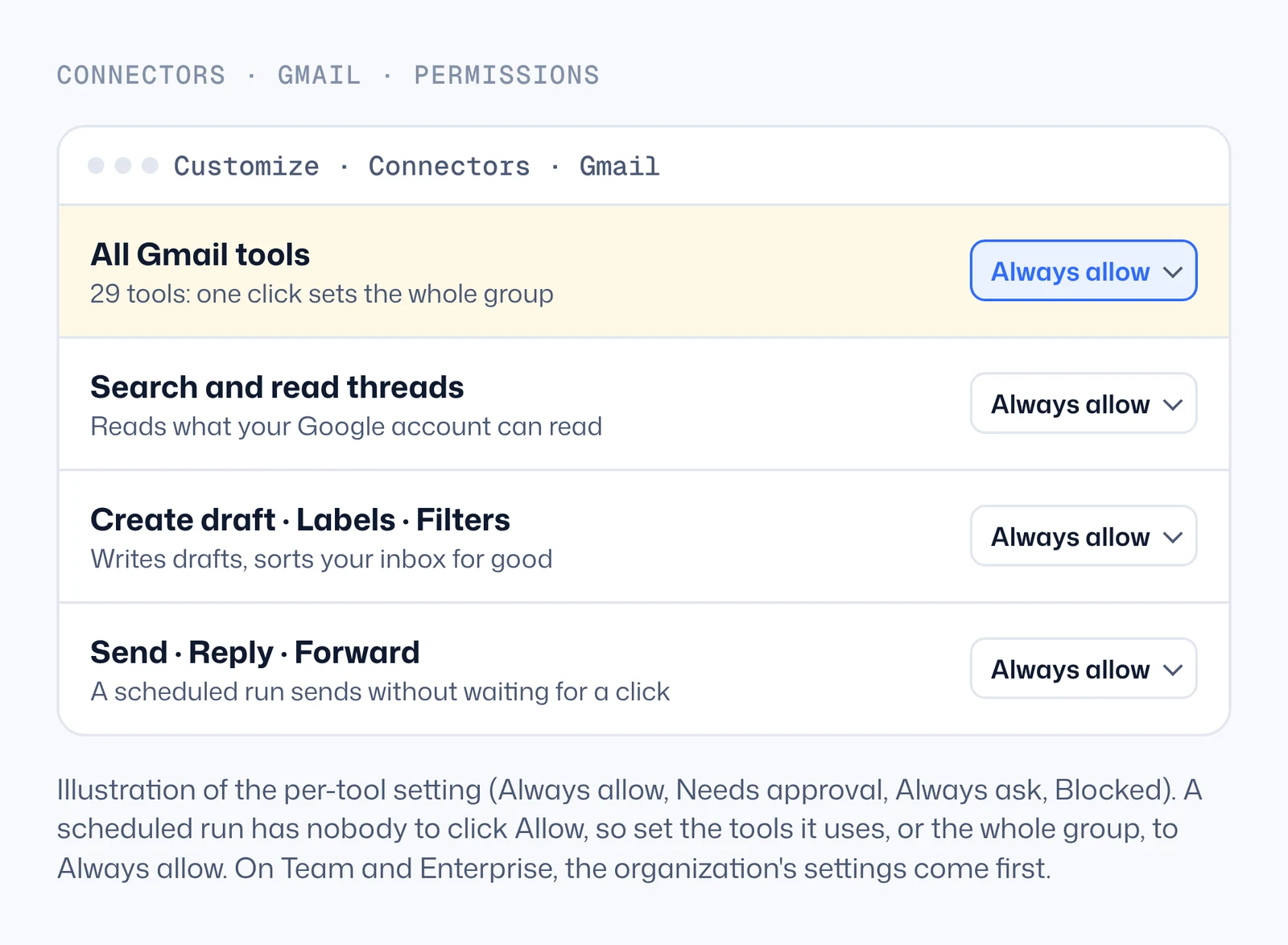
Connectors can also act. Google's Gmail connector, for example, lists 29 tools: searching and reading threads, but also creating drafts, sending, replying, forwarding, labels, filters and trash. Asking it only to read uses a few of those 29.
Read my last month of email and set up Gmail filters, so bills, quotes and newsletters each get their own label. Bills and newsletters skip the inbox; quotes get a star. Tell me which filters you created and what each one matches.
Stop the permission clicks. Every connector tool has a setting on Customize → Connectors → the connector → Permissions tab: Always allow, Needs approval, Always ask or Blocked. If Claude stops for a click on every search and draft, set the tools you use every day to Always allow, or allow the whole group in one click, and say in the request what it may send ("send the confirmations, leave the rest as drafts"). On Team and Enterprise plans the organization's settings come first.
Which connectors to start with: the mailbox (Gmail or Microsoft 365), your file storage (Google Drive, Microsoft 365), and the one app where your customers live (HubSpot, Pipedrive, Xero, QuickBooks). Our guides on sales follow-up emails and AI invoice processing walk through the CRM and accounting connectors in detail, including what each one can't do.
Data from connected apps is processed by those services on their own terms. On Team and Enterprise plans an admin can stop people sharing chats that used connectors.
Scheduled tasks: jobs that run while you're away
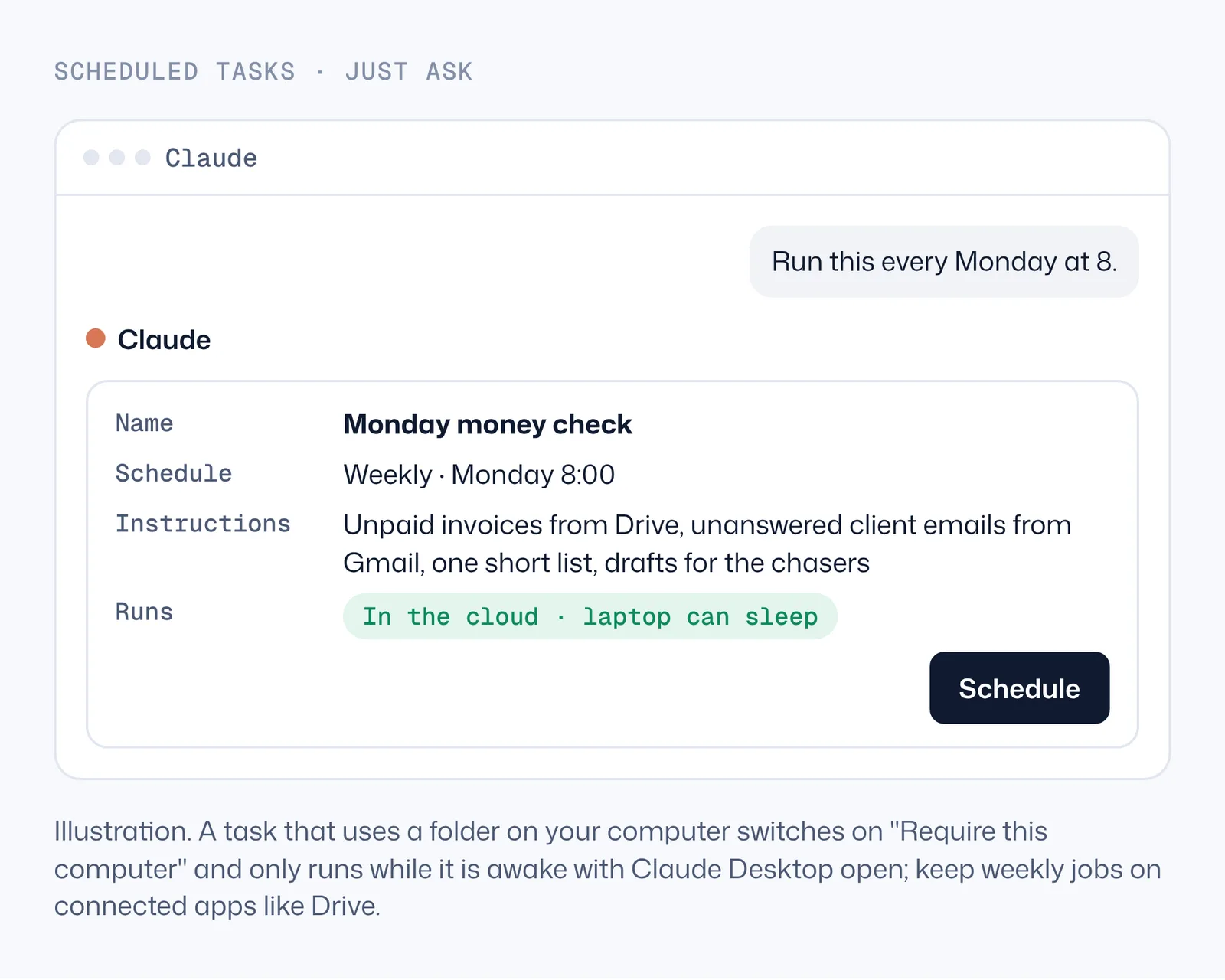
Anything you ask Claude to do once, it can do on a schedule. You don't fill in a form: in the same chat, say how often, and Claude drafts the task.
- Do the job once in a chat and check the result.
- Say: "Run this every Monday at 8."
- Answer Claude's questions, review the name, schedule and instructions it proposes, and click Schedule.
- Find it under Scheduled in the left sidebar, with past and upcoming runs. Each run is its own task you can open. From there you can edit, pause, run it now or delete it.
Schedules can be hourly, daily, weekly, on weekdays or manual. Hourly is the most often a task can run, so expect a scheduled job to pick up new work within the hour. Scheduled tasks are on Pro, Max, Ultra, Team and Enterprise; not on Free.
Before you schedule it, set the tools it uses to Always allow. A scheduled run has nobody to click Allow. If a connector tool the task uses still needs approval, the run waits for you or finishes without that step. Open Customize → Connectors → Gmail (and Drive, and any app the task uses) → Permissions, and set the tools it uses to Always allow, or the whole group in one click. Then the run goes start to finish: it reads, writes the reminders and sends them before you open the laptop. If you'd rather give that freedom to one task only, open it under Scheduled, edit it, set its approval mode to Manual and choose "Allow for all scheduled runs" when Claude asks.
Every Monday: open the Finance folder in my Google Drive and list invoices that are past due, with client, amount and days late. Then search my Gmail for client emails from the last 7 days that nobody answered. Give me one short list, most urgent first. For each overdue invoice, reply in the client's last thread with a short, polite reminder and send it. Put anything you're unsure about in my drafts instead, and list it at the top.
Seven jobs to start with, and where each one lives
| Job | Where it lives | What you ask |
|---|---|---|
| Weekly money check | Scheduled task + Drive + Gmail | Past-due invoices and unanswered client emails, every Monday at 8, reminders sent in the client's thread |
| Quote follow-ups | Skill + Gmail | "Follow up on the quotes with no reply this week" |
| Client status at a glance | Project per client | "What did we agree, what's open, what's unanswered?" |
| Monthly sales summary | Conversation (or a project for the accounts) | "Last month's sales in one sheet, with a chart and three lines on what changed" |
| New enquiry replies | Scheduled task (hourly, weekdays) + Gmail | Answer the question they asked, offer two call times, as drafts |
| Tender or contract reading | Project with the documents | "List every deadline, penalty and thing we must supply, with the page" |
| Competitor or supplier research | Research (/deep-research) | "Compare these five suppliers on price, delivery and minimum order, with sources" |
Swipe the table sideways for all columns. Our suggestions, not Anthropic's. Start with one, check its first three results by hand, then add the next.
Usage, privacy and the limits to know
- Usage: every plan has limits that reset over time. Jobs that search, run code or create files use more than quick questions, and several parallel tasks use it faster. Check where you stand in Settings → Usage.
- Permission mode: the message box has a setting for how much Claude asks. Auto keeps working with automated safety checks before most actions (the default on Pro, Max, Ultra and Team); Manual asks before each action (the default on Enterprise). By default Claude asks before deleting files for good, but that protection doesn't cover computer use, where Claude clicks and types on your screen.
- Memory: Claude builds memory as topics while you chat. Review and edit them in Settings → Your Claude, turn "Generate memory from chats" off, or turn memory off for one chat. Searching past chats is on paid plans.
- Incognito chats work, but Claude can't create files or run code in them.
- Not yet in the new experience: branching a conversation from an earlier message, and Dispatch for new users.
What it costs
| Plan | Price | What matters for this guide |
|---|---|---|
| Free | $0 | Chat, skills and connectors; up to 5 projects; no scheduled tasks; limited usage |
| Pro | $20/month, or $17/month billed yearly | Projects beyond Free's five, scheduled tasks, Research, Claude in Chrome |
| Max | $100/month | Same features, much more usage, for long or parallel tasks |
| Ultra | $200/month | More usage again |
| Team (Standard seat) | $25/seat/month, or $20 billed yearly | Shared projects, organization skills, admin controls over connectors |
Swipe the table sideways for all columns. Prices checked 2026-11-21 on claude.com/pricing. Team Premium seats cost $125 ($100 yearly) with about five times the usage.
When to have it built instead
Everything above runs as you, in your own accounts, one person at a time. It stops fitting when several people need the same job done the same way every day, when the result must land in a shared database with logins and a history, or when the same check runs on thousands of records. Then the method moves out of a prompt and into a small system.
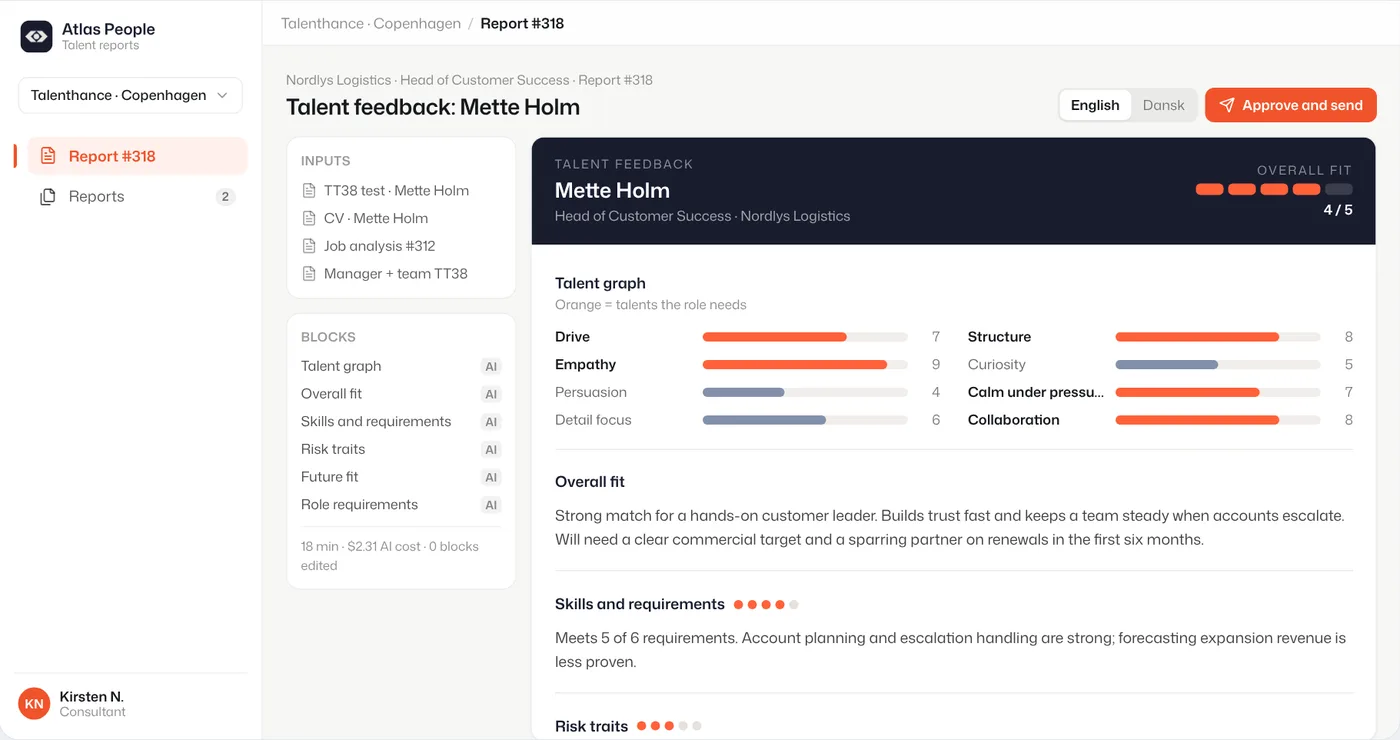
From a chat window to a report engine
AI runs on · OpenAI, with Lovable, Supabase and n8n
Atlas People's managers wrote each job analysis and candidate report by hand in a chat window, from role notes, top-performer profiles and psychometric test PDFs: the same long job, done again for every candidate. We built a form-and-prompt engine where each report section has its own prompt and output schema, admins edit the prompts, and reports export to PDF in any language. The shape of the job is the same in Claude.
Tested by hand, the model invented talents, mixed Danish and English, and filled sections that had no input behind them. The fix was guardrails in the system: fixed talent lists, a language selector, and an empty section when there is no input.
We build these for small teams: a working version in about a week, from $1,990, running in your accounts so you own it. If the setup in this guide already does the job for you, keep it.
Watch the short version
Seven Shorts, one feature each: one Claude for every job, Instructions for Claude, a project per client, skills, Gmail filters built by Claude, scheduled tasks, and Always allow so a scheduled run never waits. Watch on YouTube. Each video is under a minute; the steps, prompts and limits are all on this page.
Questions people ask
- Is Claude Cowork different from Claude Pro?
Yes. Pro is a plan (the price you pay); Cowork was the mode where Claude does whole jobs across your files and apps. Cowork is part of every paid plan, and in the new Claude experience it is merged into the normal conversation, so there is nothing separate to open.
- Can I use Claude Cowork and Chat at the same time?
In the new experience there is only one conversation, and Claude picks the tools for each request. You can still run several longer tasks at once. If your message box still shows Chat and Cowork options, your account hasn't moved yet.
- What is a Claude project?
A workspace with its own chats, files, instructions and memory. Every chat or task in it starts with that background. Free accounts get five projects; on paid plans Claude also searches large file sets with retrieval, so a project can hold more.
- What is the difference between Claude and Claude projects?
A normal chat starts from your Instructions for Claude and your account memory only. A project adds its own files, its own instructions and its own memory, so the background for one client or job is always there without pasting it.
- Is a Claude project worth it?
For any client or job you come back to more than twice a month, yes: you stop re-explaining, and the answers come from the files you added to the project. For one-off questions, a normal chat is enough.
- What's the difference between a skill and a project?
A project is background that is always loaded for one client or job. A skill is a method that Claude loads only when a task needs it, in any chat or project.
- Is there free training for Claude?
Yes. Anthropic's Claude Academy (academy.claude.com) has free courses, including Claude 101 and an introduction to Cowork, and the Help Center at support.claude.com documents every setting in this guide.
SOURCES
- 1.Claude plans and pricing (claude.com) · checked 21 November 2026
- 2.Claude Cowork and chat are one Claude: rollout, cloud vs local, mobile, permission modes, where things moved, limits (support.claude.com) · checked 21 November 2026
- 3.Set up the unified Claude experience for Enterprise: default on 16 November 2026 (support.claude.com) · checked 21 November 2026
- 4.Set up the unified Claude experience for Team: separate experience retired 1 February 2027 (support.claude.com) · checked 21 November 2026
- 5.Understanding Claude's personalization features: Instructions for Claude, project instructions (support.claude.com) · checked 21 November 2026
- 6.What are projects? Knowledge, retrieval on paid plans, sharing, free limit (support.claude.com) · checked 21 November 2026
- 7.Organize your tasks with projects in Claude Cowork (support.claude.com) · checked 21 November 2026
- 8.Chat search and memory: project memory and Use account memory (support.claude.com) · checked 21 November 2026
- 9.What are skills? (support.claude.com) · checked 21 November 2026
- 10.Use skills in Claude: Customize → Skills, code execution (support.claude.com) · checked 21 November 2026
- 11.How to create custom skills: 200-character description (support.claude.com) · checked 21 November 2026
- 12.How to create a skill with Claude through conversation (Claude Academy) · checked 21 November 2026
- 13.Use connectors to extend Claude's capabilities (support.claude.com) · checked 21 November 2026
- 14.Get started with Claude Cowork: connector tool permissions (Always allow, Needs approval, Always ask, Blocked) and scheduled runs (support.claude.com) · checked 21 November 2026
- 15.Gmail connector for Claude: 29 tools incl. drafts, send, reply, forward, labels, filters (claude.com) · checked 21 November 2026
- 16.Schedule recurring tasks in Claude Cowork (support.claude.com) · checked 21 November 2026
Prices checked 21 November 2026 · on each vendor's own pricing page: Claude plans.
Drafted with Claude from our project records; checked and edited by Mark.